How to Download on YouCine to Watch Offline (and Why the Download Button Is Missing)
How to download on YouCine to watch offline: where the download button is, where downloads are saved, and what to check when the button is missing.
Quick Answer
On builds that support it, open a movie or episode, tap the download (⬇️) icon on the title page, choose a quality if asked, and find the finished file in the app’s Downloads section — it plays with no internet connection. Important: downloads are not available on every build, title or source, so a missing button is often a limitation of your version or that title, not a mistake you made.
Flights, long bus rides, patchy hotel Wi-Fi, a commute with no signal — offline viewing is the feature people ask about most after installing YouCine. Many versions of the app do let you save titles and watch them later without a connection. The honest catch: the feature is inconsistent. It depends on your build, the title, and even the playback source behind that title. This guide covers how downloading works where it exists, where downloads live, and what it means when there is no download button at all.
How to Download on YouCine, Step by Step
If your build supports downloads, the process is quick:
- Connect to a stable Wi-Fi network. Downloads are full video files, and mobile data burns through your allowance quickly.
- Open YouCine and find the movie or episode you want to save.
- On the title’s page, look for the download icon — a downward arrow (⬇️), usually on the title page or near the play button.
- Tap the icon. If the app offers a choice of quality, pick one — the storage notes below explain why the highest is not always best.
- Wait for the download to finish, keeping the app open and the device awake.
- Later, open the app’s Downloads section to find and play the saved title — no internet needed.
Where Downloads Are Stored — and the Storage Basics
Finished downloads live inside the app’s own Downloads area, not in your phone’s gallery or video folder: open YouCine, go to Downloads, and play from there. Because the files live with the app, uninstalling YouCine or clearing its data can remove them — worth remembering before a reinstall.
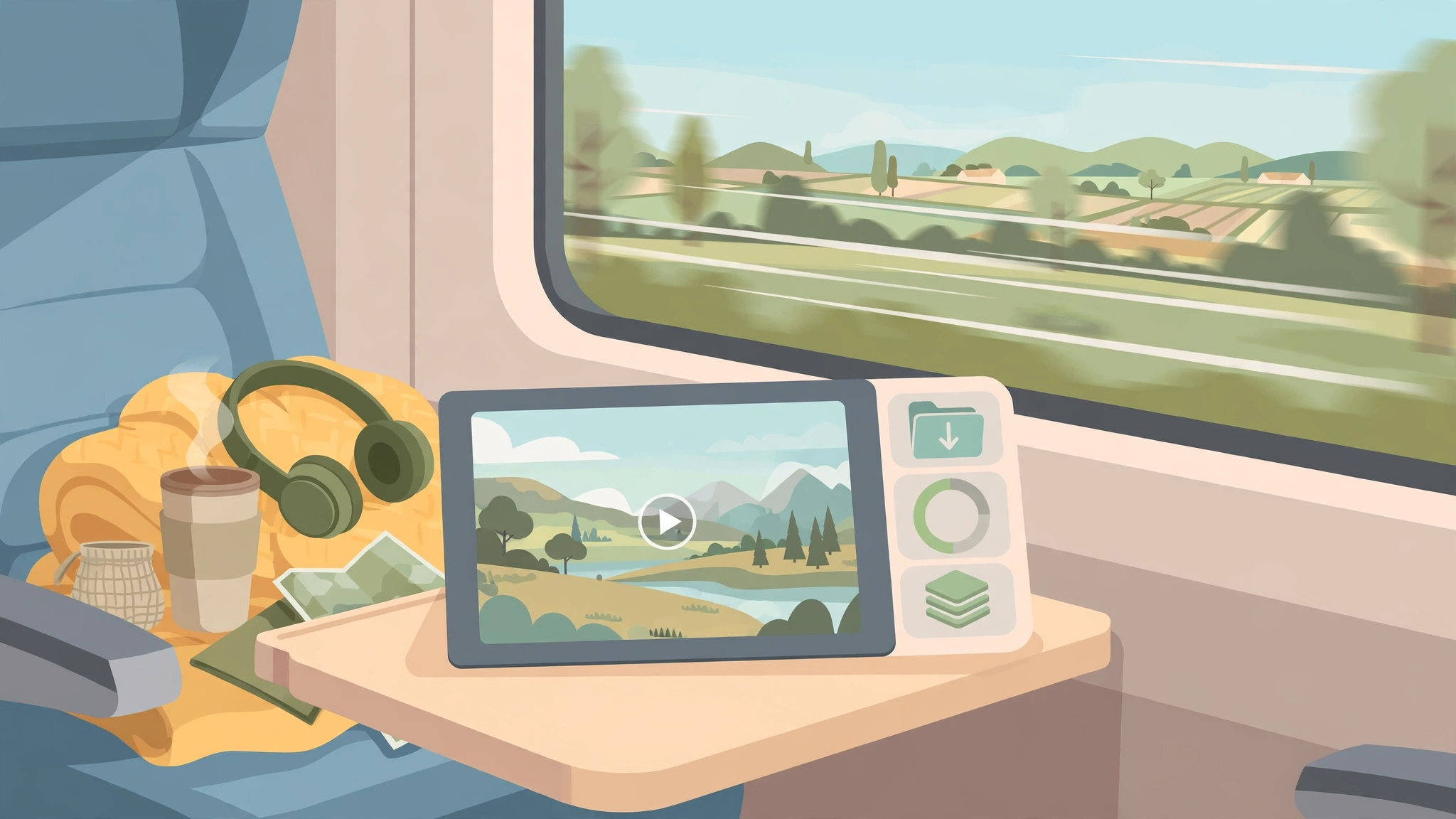
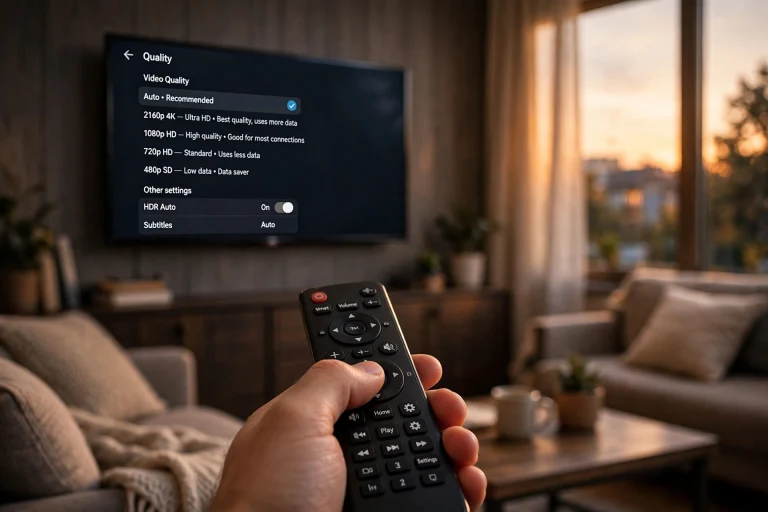
Quality is a storage decision. Where a build offers a choice, higher resolutions produce much larger files — one film at top quality can take the space of several at a lower one. Before a trip, check your free space, and whether a lower quality is good enough for a phone-sized screen. The app may also ask for storage permission; without it, it cannot save files. Our settings guide covers the related options.
Download Button Missing? Work Through This Checklist
A missing button is the most common download complaint — and most of the time nothing is broken. Check these causes in order:
- Your build may not include downloads. Offline downloading is not available on every build of YouCine; some versions do not offer it. Unsure which copy of the app you have? Our YouCine App Checker helps you identify it.
- The title or its source may not offer it. Each title is served by its own source, so availability changes from title to title. If the same title lists more than one source, try another; if none shows the icon, that title cannot be downloaded in your build.
- Your version may be outdated. Download support has changed across releases. Update to the latest version — steps in our update guide — then look again.
- You may be looking in the wrong place. The icon lives on the title page or in the player area, not on the home screen or in search results. Open the title fully and check again.
If other titles download fine but one never shows the icon, the limitation is with that title — no device setting can change it.
Download Failed, Stuck or Keeps Restarting? Try These Fixes
- Restart the app and the device. A stalled download often clears after a full restart.
- Use a stronger Wi-Fi connection. Weak or dropping connections are the top cause of downloads freezing near the end. Stay close to the router, and avoid big downloads on congested public Wi-Fi.
- Free up storage space. If the device fills up mid-download, the file cannot finish. Delete watched downloads, then retry.
- Download one title at a time. Queuing a whole season strains the connection and the device; let one finish first.
- Update the app. If downloads fail on every title, install the latest version. For broader app problems, see our troubleshooting guide and the error list.
Watching Offline: What to Know Before You Travel
Once a download finishes, test it before you rely on it: switch on airplane mode, open Downloads, and play a minute of the file. That short test at home prevents surprises at 30,000 feet.
One honest unknown: YouCine does not officially document expiry rules for its downloads. Some third-party sites claim downloads never expire, but no official statement confirms that, so we will not promise it either way. The safe habit: download close to the day you plan to watch, and re-check the file before a trip.
🇧🇷 Em Português
Como baixar no YouCine para assistir offline
Nas versões que oferecem o recurso, o processo é simples: abra o filme ou episódio, toque no ícone de download (⬇️) na página do título, escolha a qualidade, se o app perguntar, e aguarde. Depois, o título fica na área Downloads do app e pode ser assistido sem internet. Atenção: o download não está disponível em todas as versões (builds), títulos ou fontes — se o botão não aparecer, pode ser uma limitação da sua versão ou daquele título, e não um erro seu. Baixe pelo Wi-Fi, verifique o espaço livre e, se travar, reinicie o app e o aparelho, libere espaço e baixe um título por vez. O YouCine não documenta oficialmente regras de expiração; baixe perto da data em que vai assistir e teste no modo avião antes de viajar.
Frequently Asked Questions
Open the title, tap the download (⬇️) icon on its page, choose a quality if asked, and wait for it to finish. You will find it in the app’s Downloads section, where it plays without an internet connection.
Because downloads are not available on every build, title or source. Check your version, try another source for the same title if one is listed, and update the app. If the icon never appears on any title, your build most likely does not support downloading.
Into the Downloads section inside the app — not your gallery or file manager. You play them from there, and uninstalling the app or clearing its data can remove them.
On builds that offer the choice, yes — you pick a resolution when starting the download. Higher quality means a noticeably bigger file, so on a phone a mid-range quality is usually the sensible balance.
There is no official documentation of expiry rules, so any site promising downloads “never expire” is guessing. Download close to when you plan to watch, and test the file in airplane mode before a trip.
Usually a weak connection, or a device that ran out of space mid-download. Restart the app and device, free up storage, use stronger Wi-Fi, download one title at a time, and keep the app updated.
Final Thoughts
Downloading on YouCine is straightforward when your build supports it: title page, download icon, Downloads section, done. The confusion comes from the feature’s inconsistency — it varies by build, title and source, and no setting can add a button your version lacks. Work through the checklist before assuming something is broken.