How to Update YouCine to the Latest Version (Without Losing Your Settings)
A title will not play, the app naggingly misbehaves, or a friend simply has a newer version than you. Updating YouCine takes five minutes — if you do it in the right order. Do it wrong and you lose your settings or end up with an install error. Here is the right order.
Quick Answer
Quick Answer: To update YouCine, download the latest APK (currently v1.17.6, about 43 MB) from the official download page and install it directly over your existing app — do NOT uninstall first. Installing over the top keeps your account, settings and favourites. First check what you have: Settings → Apps → YouCine shows your installed version number. If the install is blocked or fails with a signature/package error, that is the one case where a clean reinstall (uninstall → restart → install fresh) is needed — the fixes section below explains how to tell.
Because YouCine is installed as an APK rather than from an app store, there is no automatic store update quietly handling this for you — and copying the four-line advice on download sites (“just install the new one”) skips the parts that actually go wrong: version checks, per-device differences, and the two install errors that panic people into uninstalling and losing everything. This guide covers the whole flow properly.
Step 1: Check Which Version You Have Now
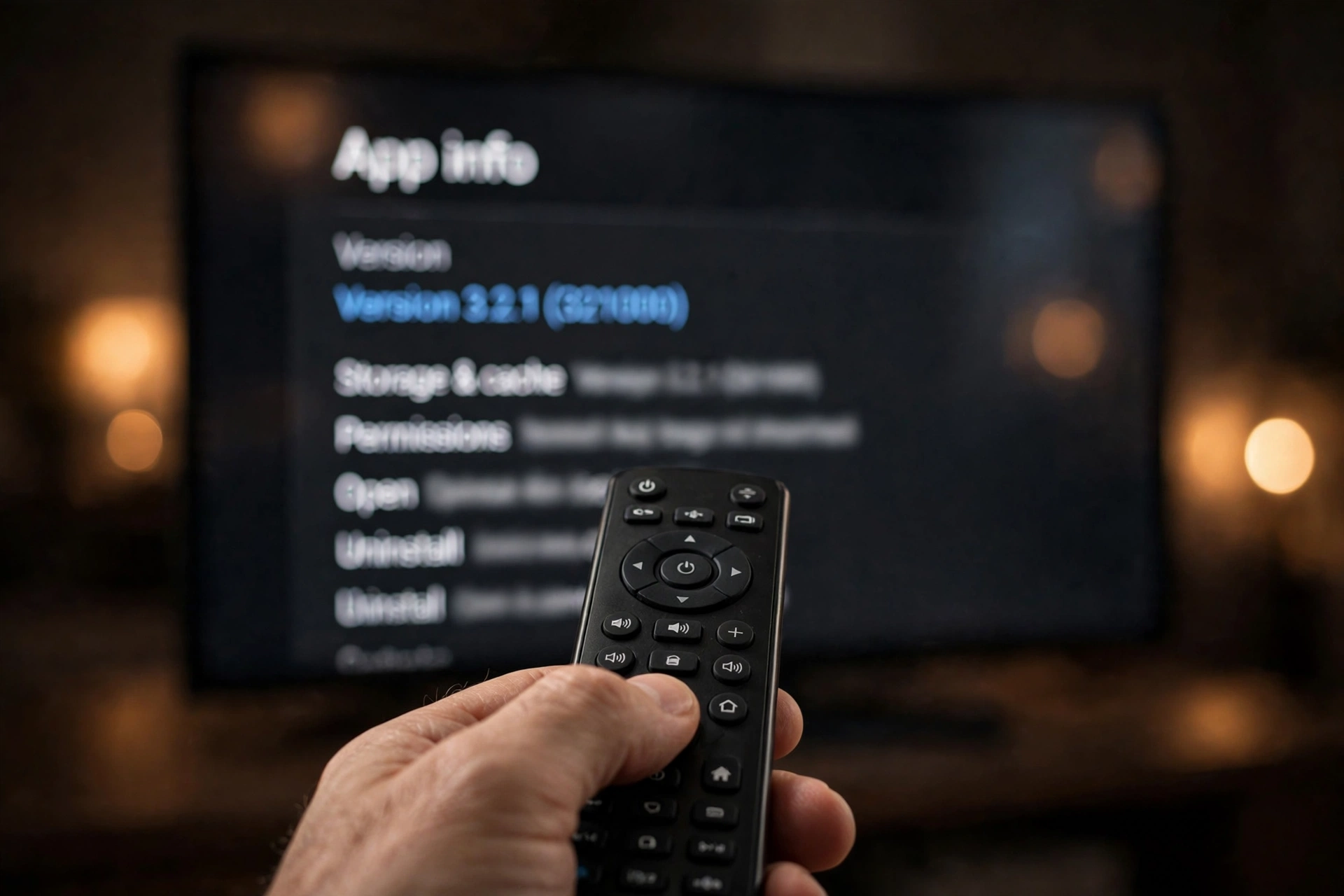
Updating blind causes half the trouble — you may already be current. On phones and Android TV/TV Box: Settings → Apps → YouCine → the version is shown at the bottom of the app info screen (on some boxes: Settings → Apps → See all apps → YouCine). On Firestick: Settings → Applications → Manage Installed Applications → YouCine. Write it down. If it already says v1.17.6, you are on the current version and this page’s troubleshooting sections are the ones you need instead.
Step 2: Update Over the Top (Keeps Everything)
This is the correct default method on every device: 1. Back up nothing — you do not need to; an over-the-top install preserves app data. 2. Open the official download page in the device’s browser (or in Downloader on Firestick/Android TV). 3. Download the current APK (v1.17.6, ~43 MB) — if Android asks permission to install from this source, allow it for the browser/Downloader only. 4. Open the downloaded file and choose Install/Update. Android recognises the same app and updates it in place. 5. Open YouCine: your account, settings, history and favourites should be exactly where you left them. Only ever get the file from the official page — update season is when fake “new version” APKs circulate hardest.
Step 3: The Update, Per Device (Small Differences)
- Phone/tablet: exactly the steps above, using Chrome or your usual browser.
- Android TV / TV Box: same, or copy the APK to a USB stick and open it in the file manager; boxes with little storage need ~500 MB free before the install will start.
- Firestick: open Downloader, re-enter the official download page address, download and install over the existing app — our Firestick guide shows where its install permission lives.
- TV Box users in Brazil: the identical flow is in our TV Box guide.
When the Update Will Not Install: The 4 Real Causes
1. “App not installed” right at the end: usually a signature conflict — the APK you have came from a different source than the one installed. This is the one case for a clean reinstall (next section). Other causes of the same message are detailed in our App Not Installed guide. 2. Install blocked / “for your security”: the install permission for that browser or Downloader was revoked by an Android update — re-allow it in Settings → Apps → (the app you downloaded with) → Install unknown apps. 3. Download finishes but nothing opens: the file is incomplete or it is not an APK at all (fake download buttons) — delete it and re-download from the official page only. 4. Not enough storage: the installer needs working room; free at least 500 MB–1 GB and retry.
The Only Case for a Clean Reinstall (and How to Survive It)
If — and only if — the over-the-top update fails with a signature/package conflict, do this: 1. Note your account email and sign-in details; a clean reinstall signs you out and resets settings and favourites stored on the device. 2. Uninstall YouCine. 3. Restart the device (this clears leftover files that cause repeat failures). 4. Install fresh from the official download page and sign in. Everything account-side returns with your login; device-side preferences need setting once more. People who uninstall first for every update do this dance monthly for no reason — avoid it unless the error forces you.
About “What’s New”: An Honest Note
YouCine does not publish an official changelog, so this page will not invent one — sites listing detailed “what’s new in this version” notes for YouCine are writing fiction; some even pair a current-version headline with notes copied from a much older release. What an update reliably does is fix bugs and compatibility behind the scenes. The practical rule: update when a title will not play, the app crashes after a device update, or your version is several numbers behind — not because a random site promises new features.
Rolling Back: If the New Version Behaves Worse
Rare, but real: a fresh version can misbehave on an old device. Because installs are manual, rolling back is possible — the safe way to do it, and the honest risks of old builds (including why “any old version” download pages are a trap), are covered in our YouCine Old Versions guide. Note that a rollback always needs the clean-reinstall steps above, since Android will not install an older version over a newer one.
Como Atualizar o YouCine (Português)
Para atualizar sem perder nada: baixe o APK atual (v1.17.6, cerca de 43 MB) da página oficial de download e instale por cima do aplicativo existente — NÃO desinstale antes. A instalação por cima mantém conta, ajustes e favoritos. Para ver sua versão atual: Configurações → Apps → YouCine. Se a instalação falhar com erro de assinatura/pacote, aí sim faça a instalação limpa: desinstale, reinicie o aparelho e instale de novo. Atenção: o YouCine não publica lista oficial de novidades — desconfie de sites que inventam “o que mudou”.
Frequently Asked Questions
Install the new APK directly over the existing app from the official download page. Android updates it in place and your account, settings and favourites stay untouched. Never uninstall first unless an install error forces it.
The current version is v1.17.6 (about 43 MB, Android 5.0+). Check yours in Settings → Apps → YouCine before updating — you may already be current.
No. Because it is installed as an APK outside an app store, updates are manual: download the new file and install it over the old one, as in this guide.
Most likely a signature conflict between sources — do a clean reinstall: uninstall, restart the device, install fresh from the official page. Also check you have at least 500 MB free.
An over-the-top update does not. Only a clean reinstall (uninstall first) signs you out and resets device settings.
Veja a versão em Configurações → Apps → YouCine. Se estiver v1.17.6, você já está na versão atual.
Final Thoughts
Updating YouCine is a five-minute job when the order is right: check your version, install over the top from the official page, and reserve the uninstall button for the one error that truly needs it. Your future self — still signed in, favourites intact — will approve.