YouCine for TV Box: How to Install on Any Android TV Box (2026)
A TV box turns any ordinary television into a smart TV — and if your box runs Android, you can install YouCine on it in a few minutes. Everything below is written for a YouCine for TV box setup, from cheap generic boxes to certified ones. This guide covers every Android TV box: certified models like the Mi Box and Mecool, and generic boxes like the MXQ Pro, X96, H96 Max and T95. You will find two install methods (Downloader and USB), the fix for the classic “installed but not showing” problem on generic boxes, and the settings that keep playback smooth.
Quick Answer: YouCine works on any TV box running Android 5.0 or newer. Install the Downloader app, allow it to install unknown apps, open youccine.com/download inside Downloader and install the APK (v1.17.6, 43 MB). No separate “TV version” exists — the same file works on phones, TVs and boxes. If the app does not appear on your home screen afterwards, open Settings → Apps to find it (a common quirk of generic boxes, explained below).
🇧🇷 Prefere português? Este guia também está disponível em português: YouCine para TV Box (guia completo)
First Check: Is Your TV Box Android?
YouCine needs Android, so check what your box runs before anything else:
- Open Settings → About (or Device Preferences → About) and look for an Android version — 5.0 or newer is fine.
- If your box has the Google Play Store, it is Android-based and this guide applies.
- Certified Android TV / Google TV boxes (Mi Box S, Mecool KM series, Nvidia Shield, Chromecast with Google TV) show a remote-friendly home screen with big tiles.
- Generic boxes (MXQ, X96, H96, T95 and similar) run regular Android with a custom launcher — they work too, but their menus and home screens behave a little differently, which this guide calls out where it matters.
A TV box is not the same as a smart TV: Samsung (Tizen) and LG (webOS) televisions cannot install APK files directly. If you use one of those TVs, connect an Android box (or a Firestick — see our Firestick guide) and install YouCine on the box instead. For televisions that already run Android TV, our Android TV guide covers the built-in system.
Quick Facts for TV Box
- Latest Version: v1.17.6
- File Size: 43 MB
- Needs: Android 5.0 or newer
- Recommended: 2 GB RAM or more, 500 MB free storage
- Works on: Mi Box, Mecool, MXQ Pro, X96, H96 Max, T95, Nvidia Shield and other Android boxes
- Price: Free basic use
What You Need Before Installing
- Your TV box connected to the TV and to the internet (Wi-Fi or an ethernet cable — a cable is more stable for streaming)
- At least 500 MB of free storage on the box
- The box’s remote; a USB mouse or an air-mouse remote makes typing much easier on generic boxes
- About 10 minutes
Method 1: Install YouCine on a TV Box with Downloader
This is the easiest method and works on almost every Android box.
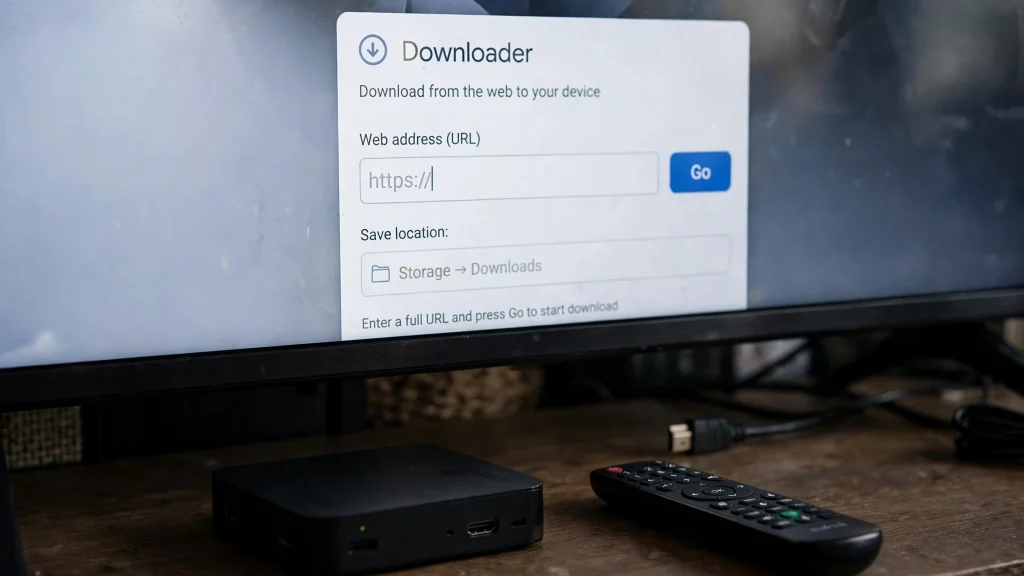
- Install Downloader: open the Play Store on your box, search “Downloader by AFTVnews” and install it. Generic boxes without the Play Store can skip to Method 2 (USB).
- Allow unknown apps: open Settings → Security & restrictions (or Apps → Special permissions) and allow Downloader to install unknown apps. On Android TV / Google TV this is Settings → Apps → Security & restrictions → Unknown sources. On generic boxes it is often a simple “Unknown sources” switch under Security.
- Open Downloader and type youccine.com/download in the address field, then press Go. Always use this download page — it provides the current, working file (v1.17.6, 43 MB). There is no official Downloader code for YouCine; any numeric code shared elsewhere is unofficial.
- Wait for the file to download, then choose Install when the installer appears. If you see “App not installed”, jump to the Common Problems section below.
- Choose Open to launch YouCine. Allow the storage/media permission if asked — the app needs it to play and cache video.
- Afterwards, delete the downloaded APK inside Downloader (Downloads section) to free about 43 MB — TV boxes have small storage and fill up fast.
Method 2: Install YouCine on a TV Box with a USB Drive
Use this method if your box has no Play Store, no browser, or a very old Downloader version.
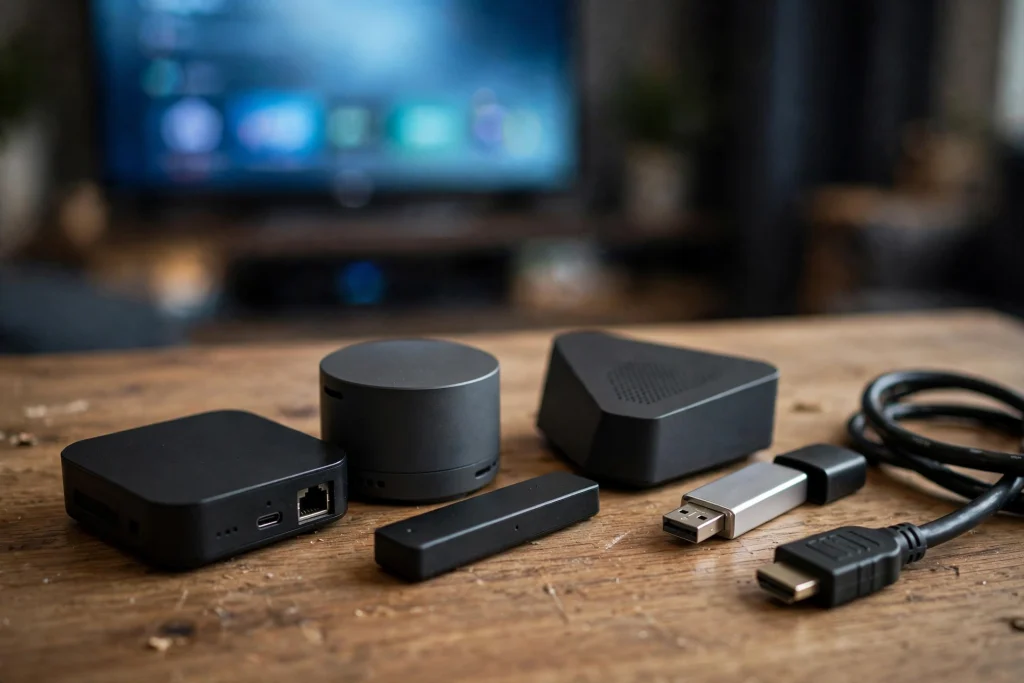
- On a computer or phone, open youccine.com/download and download the YouCine APK (v1.17.6, 43 MB).
- Copy the file to a USB drive.
- Plug the USB drive into your TV box and open the box’s file manager (it may be called File Manager, Explorer or Media Center).
- Allow unknown apps for the file manager app (Settings → Security), the same way as in Method 1.
- Open the APK from the USB drive and choose Install.
- Remove the USB drive and open YouCine from your apps list.
YouCine Installed but Not Showing on the Home Screen?
This is the number one TV box question, and it is usually not an error. Many generic boxes use custom launchers that only show pre-approved apps on the home screen, so sideloaded apps like YouCine are installed but hidden. The fixes:
- Open Settings → Apps → See all apps and look for YouCine — if it is listed, it IS installed. Open it from there.
- Check your launcher’s app drawer (an “Apps” or grid icon) — some launchers keep sideloaded apps there instead of the home row.
- Add it to favourites if your launcher offers that option (long-press or a “+” tile on the home row).
- On certified Android TV / Google TV boxes this rarely happens; the app appears in the Apps row after installing.
Our Android TV guide has the same fix written for TV menus if your box uses the standard Android TV interface.
Best YouCine Settings for a TV Box
- Connect by ethernet cable if your box has a LAN port — it removes most Wi-Fi buffering.
- In YouCine’s player, keep video quality on Auto; on 1 GB RAM boxes, cap it at 720p for stability.
- Close background apps before watching — generic boxes keep many apps running and their small RAM fills quickly.
- Clear YouCine’s cache weekly (Settings → Apps → YouCine → Clear cache) to prevent slowdowns.
- Keep at least 500 MB of storage free; a nearly full box makes every app sluggish.
If playback still stutters after these settings, our guide on why YouCine keeps buffering walks through the connection-side causes one by one.
Common Problems on TV Boxes (and Fixes)
“App Not Installed” Error
- Delete any older YouCine version first, then reinstall — an old copy with a different signature blocks the new one.
- Free storage until at least 500 MB is available.
- Re-download the file — an interrupted download corrupts the APK.
- Very old boxes (Android 4.x) cannot install it; Android 5.0+ is required.
The Remote Does Not Work Inside YouCine
Some generic-box remotes cannot navigate every screen. Fixes: enable “Mouse toggle” if your box offers it, plug in a USB mouse or keyboard, or use an air-mouse remote. On certified Android TV boxes the standard remote works normally.
Buffering or Freezing During Playback
- Switch to an ethernet cable or move the router closer.
- Restart the box (unplug it for 30 seconds) — boxes that never restart slow down over weeks.
- Clear YouCine’s cache.
- Lower the quality to 720p on low-RAM boxes.
Google Play Protect Warning
Play Protect sometimes warns about apps installed outside the Play Store. If you downloaded YouCine from youccine.com/download you can choose “Install anyway”. Never install the file from random file-sharing sites — those copies can be modified.
Popular TV Boxes: What to Expect
- Mi Box S / Mi TV Stick (Xiaomi): certified Android TV — Method 1 works exactly as written; the app shows on the home screen.
- Mecool (KM2, KM6, KD3): certified or near-stock Android TV — same smooth experience as the Mi Box.
- Nvidia Shield: the most powerful option; installs in seconds and handles 4K easily.
- MXQ Pro / X96 / H96 Max / T95 (generic): great value and fully workable, but expect the custom-launcher quirks above — especially the “not showing on home screen” behaviour and remote navigation. The USB method suits them best when the Play Store is missing.
- Chromecast with Google TV: not a box but a dongle — treat it like a certified Android TV device and use Method 1.
How to Update YouCine on a TV Box
When a new version appears, repeat the same method you used to install: open youccine.com/download in Downloader (or copy the new APK by USB), install it over the existing app, and your settings and favourites carry over. Your current version is shown inside the app’s settings. Never uninstall first — installing over the top keeps everything, and it keeps the “App not installed” signature error away.
Frequently Asked Questions
No. The same YouCine APK (v1.17.6, 43 MB) works on phones, Android TVs and TV boxes. Anyone selling or sharing a special “TV version” is not official — always download from youccine.com/download.
Any box running Android 5.0 or newer: certified models like Mi Box, Mecool and Nvidia Shield, and generic boxes like MXQ Pro, X96, H96 Max and T95.
On generic boxes the launcher often hides sideloaded apps. Open Settings → Apps → See all apps to find and launch it, then add it to favourites if your launcher allows.
Yes — use Method 2 in this guide: copy the APK to a USB drive from a computer or phone, then install it with the box’s file manager.
Yes on certified Android TV boxes. On some generic boxes an air mouse or a USB mouse makes navigation easier.
Install the new APK over the old one using the same method (Downloader or USB). Your settings carry over; do not uninstall first.
Final Thoughts
A TV box is the cheapest way to get YouCine on a big screen: check your Android version, install with Downloader or USB, and remember the Settings → Apps trick if the icon hides from your home screen. Watching on a phone instead? Our Mobile guide covers the phone setup step by step.