YouCine “App Not Installed” Error? 7 Causes and the Fix for Each (2026)
The install runs, the bar fills — then: “App not installed.” That vague message has seven distinct causes. Find yours, fix it once.
Quick Answer
Most “App not installed” errors when installing YouCine come from one of three things: an older YouCine copy still on the device (signature clash), a corrupted/incomplete download, or too little free storage. Uninstall any old copy, restart, re-download the current file (v1.17.6, 43 MB) from youccine.com/download with at least 500 MB free — that sequence fixes the majority of cases. The other causes are below, each with its own fix.
Android shows the same four words — “App not installed” — for completely different problems, which is why random advice (“just restart!”) so often fails. This page lists the seven real causes in the order people actually hit them, how to recognise yours, and the precise fix for each — for phones, Firestick, Android TV and TV boxes.
Cause 1: An Older YouCine Is Already Installed (Signature Clash)
The most common cause. If a YouCine copy from a different source is already on the device, Android refuses to install the new file over it because the signatures do not match. Fix: 1. Uninstall the existing YouCine completely (Settings → Apps → YouCine → Uninstall; on Firestick: Settings → Applications → Manage Installed Applications → YouCine → Uninstall). 2. Restart the device. 3. Install the fresh file from the official download page. Note the trade-off: uninstalling removes app data, so you will sign in again — that is the unavoidable price of a signature clash, and exactly why our guides say to update OVER the old app whenever signatures match (see the Old Versions guide).
Cause 2: The Downloaded File Is Corrupted or Incomplete
An interrupted download (Wi-Fi drop, Downloader closed early, browser killed in the background) leaves a file that looks complete but is not. Recognise it: the file size is noticeably different from 43 MB, or the error appears instantly when installing. Fix: delete the file, re-download it fully from youccine.com/download on a stable connection, and check the size before installing. On Firestick/TV box, delete the old file inside Downloader first so the new one does not get renamed or mixed up.
Cause 3: Not Enough Free Storage
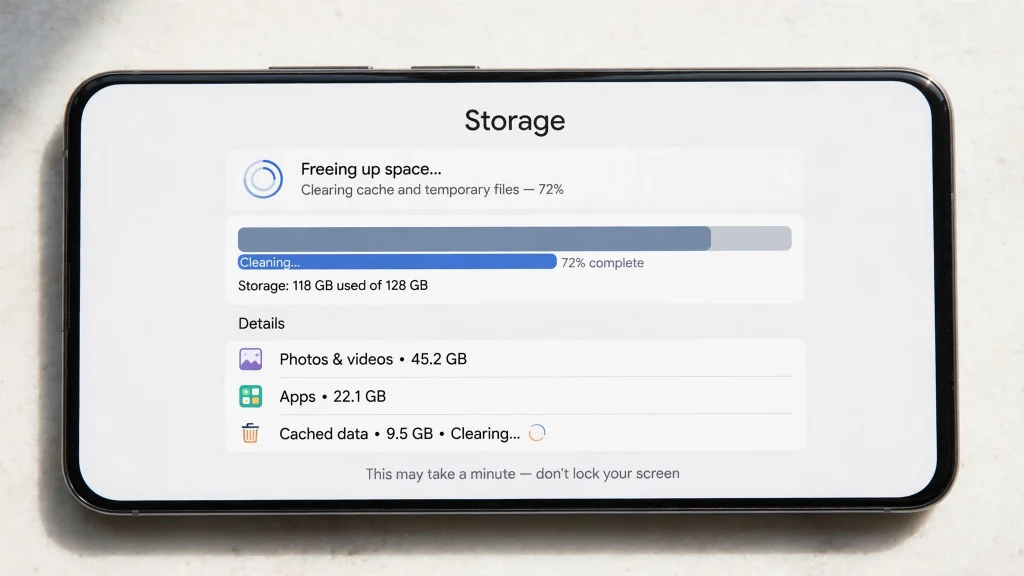
The installer needs working room beyond the file itself; a device with 100 MB free cannot install a 43 MB app. Fix: free at least 500 MB — delete the APK after previous installs, clear other apps’ caches, remove unused apps. TV boxes and Firesticks are the usual victims; check storage in Settings before retrying.
Cause 4: Your Android Version Is Too Old
YouCine needs Android 5.0 or newer. On Android 4.x devices the install simply refuses. Fix: check Settings → About → Android version. If it is below 5.0, no file will install — the realistic options are a newer device or a cheap current TV box for the TV (our TV Box guide explains), not another download.
Cause 5: Play Protect or the Installer Blocked It
Sometimes the message hides a block: Play Protect or a manufacturer installer (Xiaomi/Samsung prompts) stopped the install. Fix: read the actual prompt — if you downloaded from the official download page and the prompt offers “Install anyway”, use it; if Play Protect reports the file as HARMFUL (different wording, stronger warning), stop and re-download from the official page instead. Never disable Play Protect entirely to force an install — the distinction is explained in our safety guide.
Cause 6: “Parse Error” — the Package Cannot Be Read
A close cousin: “There was a problem parsing the package.” Same family, slightly different trigger — the file is damaged (Cause 2), the Android version is too old (Cause 4), or the file was renamed/moved mid-download. Fix: re-download the untouched file (do not rename it), keep it in Downloads, and install from there. On TV boxes, installing from a half-copied USB file does this too — copy it fully to internal storage first.
Cause 7: Installing Inside an Emulator or a Second Space
On PC, a failed in-emulator install usually means an older YouCine inside the emulator (apply Cause 1 inside the emulator) or too little space allocated to it. On phones with dual-apps/second-space features, a copy hidden in the second space can also clash — uninstall there too, then retry.
The Universal Sequence (When You Cannot Tell Which Cause)
- Uninstall every YouCine copy on the device (including second space / inside the emulator).
- Restart the device.
- Free at least 500 MB.
- Re-download the current file from youccine.com/download and confirm ~43 MB.
- Keep Play Protect ON; allow “Install anyway” only for that file.
- Install, then open the app before installing anything else. If it STILL fails after this exact sequence, the device itself is the problem (Android below 5.0, or a hardware/storage fault) — and if the app installs but then misbehaves, continue with the Not Working guide.
Frequently Asked Questions
Almost always a signature clash with the copy already installed — usually because the old copy came from a different source. Uninstall it, restart, and install the current file from the official download page.
Then suspect the file itself (re-download and check it is ~43 MB) or a hidden older copy — including inside a second space or an emulator. The universal sequence above rules each out in order.
No. It is Android’s generic installer refusal. It says nothing about malware — though if the file came from an unofficial site, replace it with the official one anyway (see the safety guide).
Firesticks run out of storage quickly and often hold a Downloader-fetched older file. Delete old APKs inside Downloader, uninstall the old YouCine from Manage Installed Applications, restart the stick, and install fresh.
Unfortunately uninstalling removes local app data. Sign back in afterwards and re-add them — there is no official backup/restore for the app data. This is why updating over the top is recommended whenever signatures allow it.
The installer could not read the file: it is corrupted, incomplete, renamed, or meant for a newer Android than yours. Re-download the untouched current file and check your Android version is 5.0+.
Final Thoughts
“App not installed” is not one error — it is Android shrugging in seven different situations. Work out which one is yours (the signature clash, the corrupt file and the full storage cover most cases), apply its specific fix, and the install takes a minute. When in doubt, the universal sequence resets everything to a known-good state: clean device, fresh official file, room to breathe.