YouCine Chromecast & Screen Mirroring: How Casting Works (and Why It Fails)
YouCine Chromecast and screen mirroring explained: the three ways casting works, why it fails, and when installing the app on Google TV is better.
Quick Answer
Quick Answer: “Casting YouCine to a Chromecast” can mean three different things: a built-in cast option inside the player (some builds offer one), mirroring your phone’s screen, or — on a Chromecast with Google TV — skipping casting and installing the app on the device. A classic Chromecast dongle cannot install apps at all; it can only receive what your phone sends.
Search for YouCine and Chromecast and you will find contradictory claims: some sites promise built-in casting that works “in two taps,” while reseller pages state the apps simply “don’t work on Chromecast.” Both are half right, because the word Chromecast covers two different kinds of hardware — a simple receiving dongle, and a full Google TV player that runs apps. This guide separates the three real situations, then gives the fixes.
Situation 1: A Built-In Cast Option in the Player
Some guide and download sites report that certain YouCine builds include a built-in Chromecast option: start a title on your phone, tap a cast icon in the player, choose your Chromecast or cast-ready TV, and playback moves to the big screen while your phone becomes the remote.
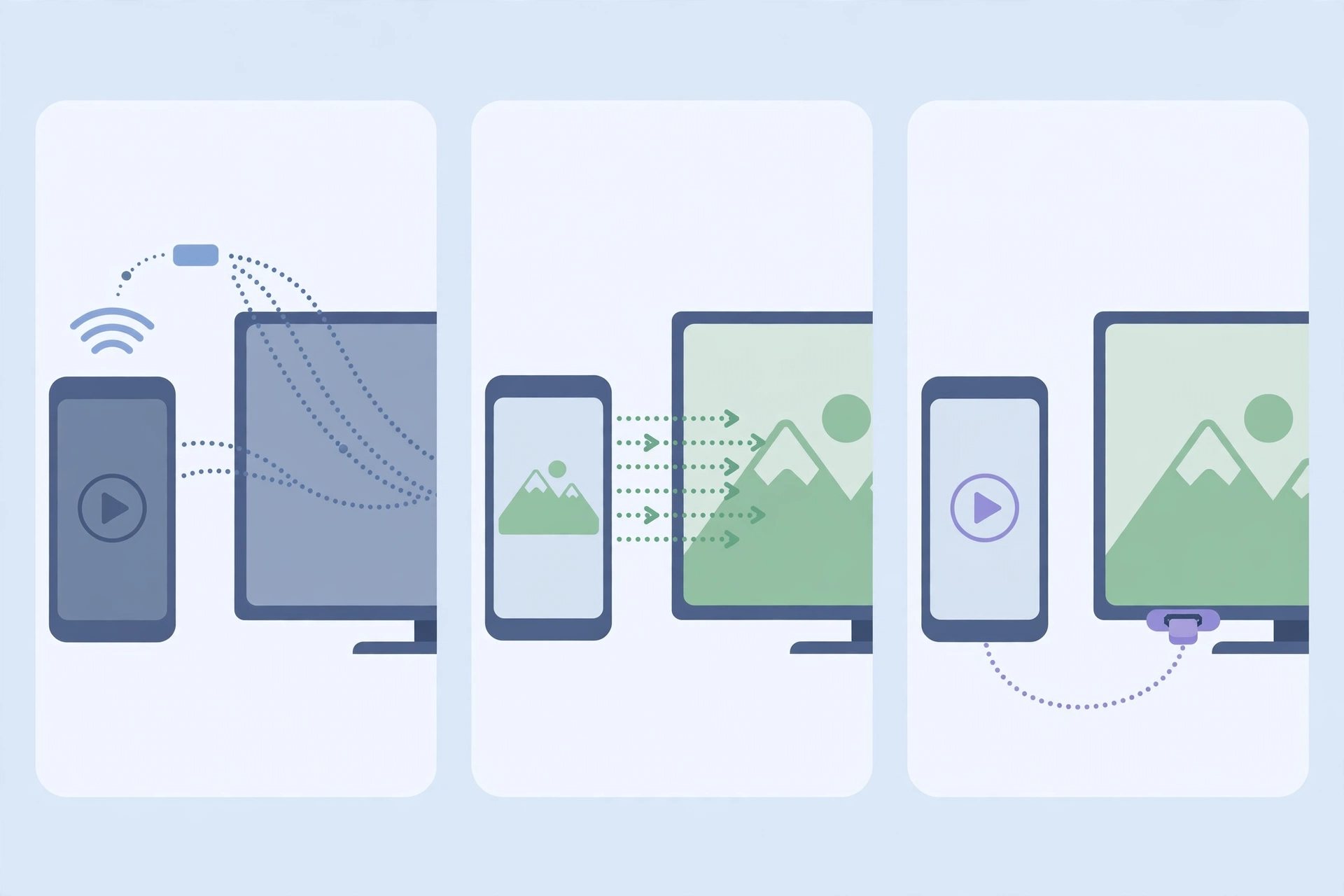
The honest caveat: this is reported for some builds, not all. Casting support varies by version — other guides hedge that it “depends on the version and your devices” — and no setting switches it on in a build that lacks it. No cast icon? You have not missed a hidden menu: use mirroring (Situation 2) or a direct install (Situation 3).
Situation 2: Screen Mirroring (Espelhamento) from Your Phone
Mirroring differs from casting: instead of handing the stream to the TV, your phone displays its entire screen on the TV in real time, and YouCine plays inside that mirrored picture. This is the method YouCine itself points to — in its Reclame Aqui replies, screen mirroring (espelhamento) is listed as a feature of its Mobile VIP and VIP Combo plans. The basic steps:
- Connect the phone and the TV or Chromecast to the same Wi-Fi network.
- Open your phone’s mirroring feature — depending on the brand it may be called Cast, Smart View, Screen Cast or Screen Mirroring.
- Select your TV or Chromecast from the list, and wait for the phone screen to appear.
- Open YouCine, start the title, and rotate the phone to landscape.
The trade-offs: your phone stays busy and awake throughout, notifications pop up on the TV for all to see, and smoothness depends entirely on your phone and Wi-Fi.
Situation 3: Chromecast with Google TV — Install the App Instead
A Chromecast with Google TV (like other Google TV / Android TV devices) is not a mere receiver — it is an Android player with its own home screen, remote and app storage. On these devices you do not cast YouCine at all: you install the app directly on the device, as on an Android TV box, and watch with the remote. It is the most stable option of the three, because the stream runs on the TV device, not through your phone. Not sure which build fits your device? Our YouCine App Checker walks you through it.
So Why Do Some Sites Say YouCine “Doesn’t Work on Chromecast”?
The claim traces back to the classic Chromecast dongle — the small puck with no remote, no menus and no app storage. You cannot install YouCine, or any app, on it: there is nothing to install apps onto, so it only receives streams and mirrored screens from a phone or computer. Dongle testers honestly report “doesn’t work”; Google TV testers honestly report that it does — and both publish as if “Chromecast” were one thing. It is not: check your hardware first.
Casting Not Working? Fixes That Solve Most Cases
- Put everything on the same Wi-Fi network. Casting and mirroring fail silently when the phone is on a different network from the TV — including the trap of the phone quietly using mobile data.
- Restart all three devices. Restart the phone, unplug the TV or Chromecast for 30 seconds, and restart the router. Stale connections cause most “device not found” lists.
- Update YouCine. Casting features change between builds; if yours never offers casting, install the latest version.
- For mirroring lag, stutter or freezing: the phone does all the work — close other apps, move closer to the router, lower the playback quality, and see our lag guide for the network side.
- Keep the phone awake and nearby. A phone that sleeps, locks or drifts out of Wi-Fi range ends the mirror. Keep it charged, in the same room.
- Check whether playback itself is broken. If videos also stutter or crash on the phone screen, the problem is the app, not the casting — see our crashing fixes and troubleshooting guide.
🇧🇷 Em Português
Como espelhar o YouCine na TV
“Transmitir o YouCine para a TV” pode significar três coisas. (1) Botão de transmissão dentro do player: alguns sites relatam que certas versões trazem essa opção — mas não todas. (2) Espelhamento de tela: o celular mostra a tela inteira na TV; nas respostas da YouCine no Reclame Aqui, o espelhamento aparece como recurso dos planos Mobile VIP e VIP Combo. Para espelhar: conecte celular e TV à mesma rede Wi-Fi, abra o espelhamento do celular (Transmitir, Smart View ou Espelhamento de Tela), selecione a TV ou o Chromecast, abra o YouCine e reproduza o título. (3) Chromecast com Google TV / Android TV: nesses aparelhos, você instala o app diretamente na TV, sem espelhar — a opção mais estável. Já o Chromecast antigo (sem controle e sem menus) não instala aplicativos: só recebe o que o celular envia — e é dessa confusão que nascem os sites afirmando que “o YouCine não funciona no Chromecast”. Se o espelhamento travar, reinicie celular, TV e roteador e mantenha o celular acordado.
Frequently Asked Questions
It depends which Chromecast you mean. On a Chromecast with Google TV you can install the app and watch directly. On a classic dongle you cannot install anything — only mirror your phone’s screen, or use a build offering in-player casting.
Casting support varies by build; not every version includes it, and no hidden setting enables it. Your fallbacks are mirroring, or — on Google TV hardware — installing the app itself.
No. The classic dongle has no app storage or interface — it only receives content from a phone or computer. Installation is possible on Chromecast with Google TV and other Android TV devices.
With casting, the player hands the stream to the TV and your phone is just a remote. With mirroring, the phone plays the video and duplicates its whole screen — hence the battery drain, the visible notifications and the easier lag.
In YouCine’s own Reclame Aqui replies, mirroring (espelhamento) is listed among the features of its Mobile VIP and VIP Combo plans, so it may be presented as a plan feature. What an individual free build allows can vary and is not officially documented.
Your phone does all the work over Wi-Fi. Restart phone, TV and router, keep both on the same network, move closer to the router, lower the playback quality, and keep the phone awake.
Final Thoughts
Almost every “YouCine doesn’t work on Chromecast” story is really a hardware mix-up: a receiving dongle asked to run apps, a build without a cast button, or a phone mirroring over weak Wi-Fi. Find your situation, and the right method is usually obvious — install on Google TV if you can, mirror if you must, and blame the network before the app.