How to Install YouCine with a USB Pen Drive: TV Box, Android TV and Firestick Without a Browser
Some TV boxes have no usable browser, no keyboard, or a download page that refuses to load. The old-school route still works on all of them: put the YouCine APK on a USB pen drive, plug it in, install. But the details everyone skips — the drive format, the permission granted to the wrong app — are exactly where this method usually dies.
Quick Answer
Quick Answer: To install YouCine from a USB pen drive: 1) On a PC or phone, download the official APK (v1.17.6, ~43 MB) from the official download page. 2) Copy it to a pen drive formatted as FAT32, with the file at the root (not inside a folder). 3) Plug the drive into the TV box/Android TV, open the file manager, and — the step everyone misses — grant “install unknown apps” permission to the FILE MANAGER app, not just in the general security settings. 4) Tap the APK and install. Note: this does NOT work on Samsung (Tizen) or LG (webOS) TVs — no pen drive makes those systems read an APK.
Every device guide on this site teaches the on-device download route (browser or Downloader). This page is the other route — the transfer method — for browserless boxes, boxes on connections where the download is blocked, and anyone setting up a box for a relative with files prepared in advance. Done in the right order it takes five minutes; the troubleshooting table at the end covers the four ways it goes wrong.
Step 1: Get the Right File (and Check It Before It Touches the TV)
On a computer or phone, download the APK only from the official download page. Then do the 20-second smell test that catches most fakes: the file should be the current version (v1.17.6) and roughly 43 MB. A “YouCine” file of 15–22 MB, or one that arrived via a pen drive passed around from someone else’s downloads folder, is not the same app — the pen-drive route is exactly how modified copies spread at markets and family gatherings, which is why this check exists. Delete anything that fails it and re-download.
Step 2: Prepare the Pen Drive (FAT32 Is the Rule)
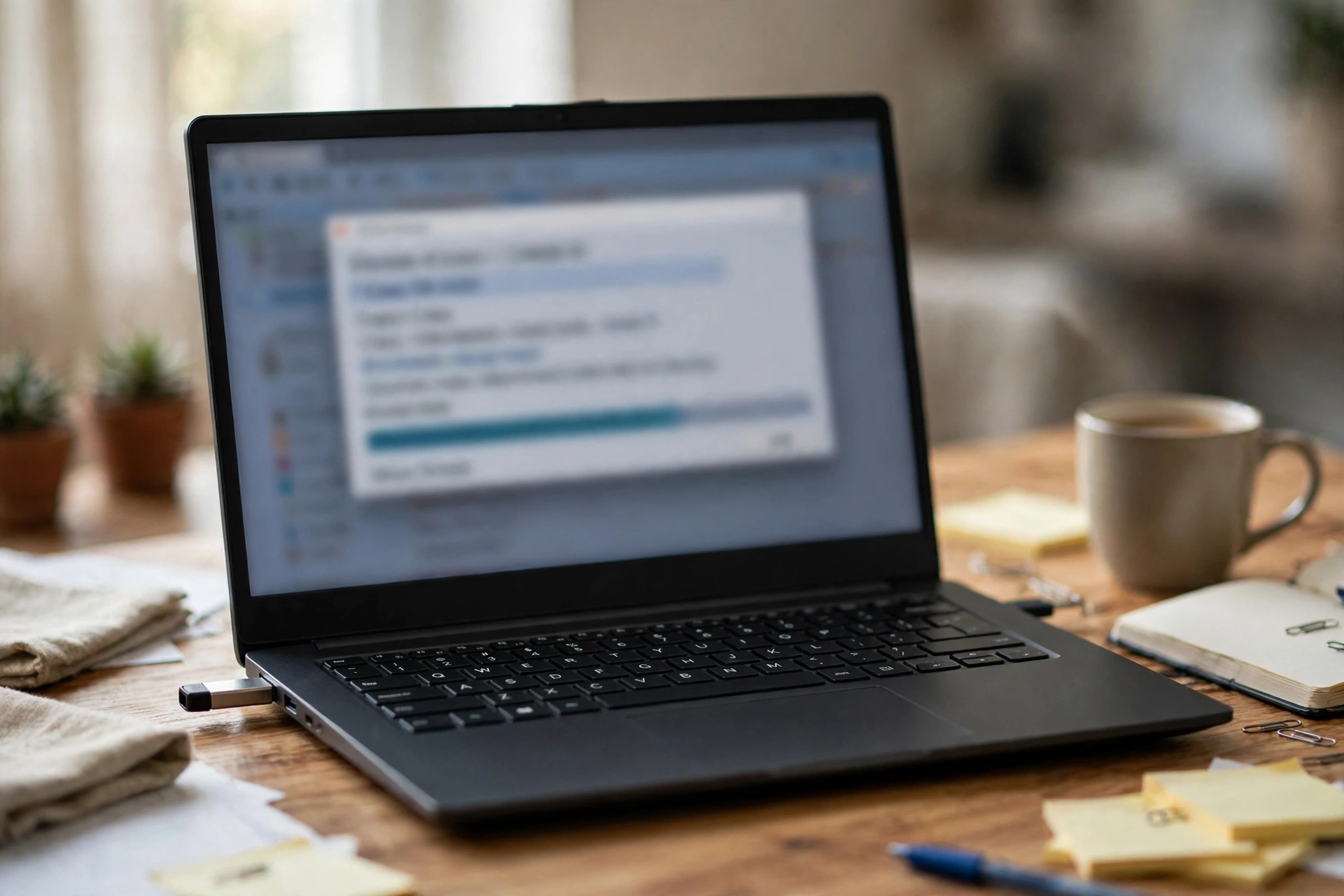
- Format (or confirm) the pen drive as FAT32. Many TV boxes cannot read exFAT or NTFS drives at all — “pen drive not detected” is usually this, not a broken port. Formatting erases the drive, so copy anything you need off it first.
- Copy the APK to the ROOT of the drive — not inside a folder — so any file manager finds it instantly.
- Safely eject the drive; pulling it mid-write is how you get a truncated file and a “parse error” later.
Step 3: Install on the TV Box / Android TV
- Plug the drive into the box.
- Open the box’s file manager (called File Browser, File Manager or similar; if none exists, install one from the Play Store where available).
- Before tapping the file: Settings → Apps → (your file manager) → Install unknown apps → Allow. On older boxes: Settings → Security → Unknown sources ON. This permission belongs to the app DOING the installing — granting it “in general” while the file manager itself is not allowed is the #1 failure of this whole method.
- In the file manager, open the drive, tap the APK, Install.
- Open YouCine and sign in. Box-specific notes are in our TV Box guide and the same flow applies to Android TV sets (TCL, Hisense, Sony…) in our Android TV guide
The Firestick Variant (and the Honest Advice)
A Fire TV Stick has no full-size USB port: pen-drive installs need an OTG (micro-USB/USB-C, model-dependent) adapter cable, after which a file-manager app can read the drive and the same permission logic applies. It works — but for almost every Firestick owner, the Downloader route in our Firestick guide is quicker and cable-free. Use USB on a stick only when the download route itself is unavailable.
The Samsung/LG Warning (Save Yourself the Trip)
A pen drive does NOT make YouCine installable on a Samsung or LG TV. Tizen and webOS cannot install APK files from any source — USB included; the TV will simply not offer an install option for the file. If the “TV” in question is a Samsung or LG, the working routes are an Android device on HDMI or mirroring, all covered in our Samsung & LG Smart TV guide.
Troubleshooting: The 4 Ways This Goes Wrong
- Pen drive not detected → almost always exFAT/NTFS formatting or a dead port: reformat FAT32, try another port.
- “Parse error” when opening the APK → truncated/corrupted copy: re-download and re-copy, ejecting safely.
- Install blocked / button greyed → the install permission was granted to the wrong app: grant it to the file manager itself (Step 3).
- Installed but will not open, or “App not installed” → the copy is a different build/signature than one already present: the causes and procedure are in our App Not Installed guide.
- Drive detected but file invisible → it is inside a folder or the file manager is filtering by media type: look for a “show all files” view or move the APK to the root.
Como Instalar o YouCine pelo Pen Drive (Português)
Passo a passo: 1) Baixe o APK oficial (v1.17.6, cerca de 43 MB) no computador ou celular. 2) Formate o pen drive em FAT32 (muitas TV Box não leem exFAT/NTFS) e copie o APK na raiz do pen drive, fora de pastas. 3) Conecte na TV Box, abra o gerenciador de arquivos e libere a permissão “instalar apps desconhecidos” PARA O GERENCIADOR DE ARQUIVOS — esse é o passo que todo mundo esquece. 4) Toque no APK e instale. Atenção: pen drive NÃO instala APK em TV Samsung (Tizen) nem LG (webOS) — nesses casos só com aparelho Android na HDMI ou espelhando o celular.
Frequently Asked Questions
FAT32. Many Android TV boxes cannot read exFAT or NTFS at all; FAT32 is the format every box reads, and the APK is far below its 4 GB file limit.
Usually the format (reformat to FAT32) or the port. Also copy the APK to the root of the drive — some file managers do not browse folders on external drives by default.
The “install unknown apps” permission must belong to the file manager app doing the installing. Grant it in Settings → Apps → your file manager → Install unknown apps → Allow.
No. Samsung (Tizen) and LG (webOS) TVs cannot install APK files from USB or any other source. You need an Android device connected by HDMI, or screen mirroring.
Only if the file is verified: official download page, current version, ~43 MB. Pen drives passed between people are a classic route for modified APKs — check before you install.
Pen drive em FAT32, APK na raiz, permissão de instalar liberada para o gerenciador de arquivos, e toque no arquivo. Se a box não enxerga o pen drive, quase sempre é o formato (exFAT/NTFS).
Final Thoughts
The pen-drive method is older than the boxes it serves, and it still works — provided the three unglamorous details are right: FAT32, file at the root, permission granted to the file manager. Get those three right and this is the most reliable install route of all, because it never depends on the TV’s browser behaving.