
YouCine for Android TV (2026) – Installation Guide, Features, Fixes & Streaming Tips
If you are looking for a smooth way to watch movies, TV shows, and live entertainment on a big screen, YouCine for Android TV is one of the most searched topics among streaming users. Android TV devices are widely used because they turn any normal TV into a smart entertainment system.
This guide explains everything about installing YouCine on Android TV, how it works, common issues, and how to get the best performance without buffering or crashes.
What is YouCine for Android TV?
YouCine is an Android-based streaming application that can also run on Android TV devices. Since Android TV uses the same ecosystem as Android phones, users can install the app using APK installation (sideloading method).
Once installed, it allows users to stream:
- Movies
- TV shows
- Live channels
- Entertainment content
- Series and online videos
The interface is optimized for large screens, making it easy to navigate using a TV remote.
Why YouCine is Popular on Android TV
Android TV users prefer YouCine because it provides a simple and fast streaming experience without complicated setup.
Main reasons include:
- Easy remote control navigation
- Smooth HD playback on large screens
- Lightweight performance on TV devices
- Simple interface designed for TVs
- Fast loading of content
- No complex registration process
These benefits make it a strong option for home entertainment setups.
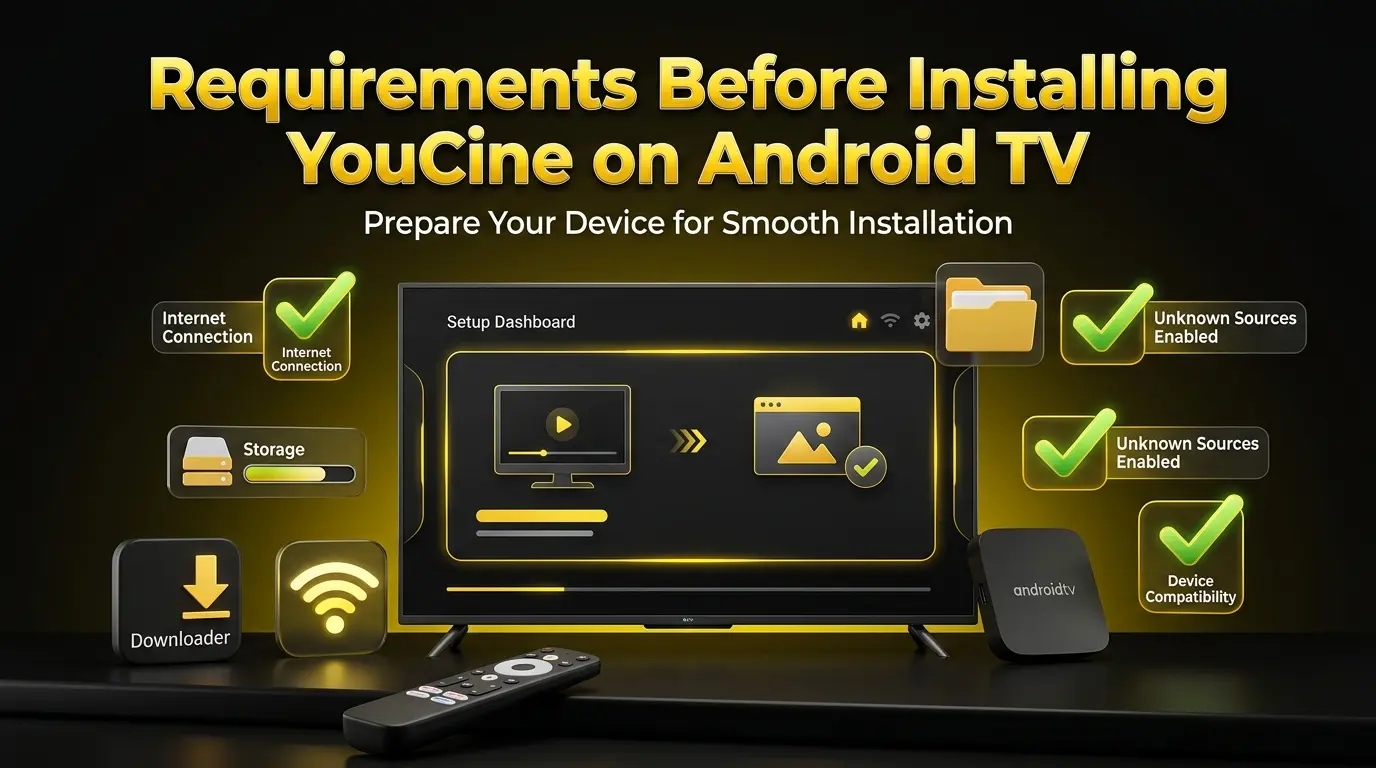
Requirements Before Installing YouCine on Android TV
Before installing, make sure your TV is ready for APK installation.
You need:
- Android TV / Google TV (Android 5.0 or newer) or an Android TV Box
- Stable internet connection: 10 Mbps+ for HD, 25 Mbps for 4K
- Enough storage space: at least 500 MB free (app is 43 MB, plus cache space)
- File manager or downloader app
- Permission to install unknown apps enabled
Without these settings, installation may fail.
How to Install YouCine on Android TV (Step-by-Step Guide)
Follow this method carefully for proper installation.
There are two ways to install: with the Downloader app (easiest) or with a USB drive. Both are explained below. It takes about 5 minutes.
Step 1: Enable Unknown Sources
On Google TV / Android 10 and newer: go to Settings → Apps → Security & restrictions → Unknown apps → select Downloader → Allow. On older Android TV (versions 8/9): Settings → Security & restrictions → Unknown sources → turn it on for Downloader. The setting is per-app, so allow it for the app you will install with.
Step 2: Install File Manager or Downloader App
Open the Google Play Store on the TV, search “Downloader” by AFTVnews and install it (free). Open it and Allow the file access permission — it needs this to save the APK file.
Step 3: Download YouCine APK
In the Downloader home field, type youccine.com/download and press Go. On the download page, choose the download button for the latest version (v1.17.6, 43 MB). Note: YouCine has no official Downloader code; codes on random websites change often and can point to wrong files, so the page address is the safe route.
Step 4: Locate APK File
When the download finishes, the install screen usually opens by itself. If it does not, open your file manager, go to the Download folder and select the YouCine APK file.
Step 5: Install Application
Choose Install. Google Play Protect may show a standard warning because the app comes from outside the Play Store — this happens with every sideloaded app. Only continue when the file came from the download page above.
Step 6: Open YouCine
Choose Open to start YouCine. Afterwards, go back to Downloader and Delete the downloaded APK file — it is no longer needed and deleting it frees about 43 MB, which matters on TVs with small storage.
USB method: download the APK on a computer or phone, copy it to a USB drive and plug the drive into the TV. Open a file manager (for example File Commander), open the APK file and install it. The unknown-apps permission must be allowed for the file manager app.
First-time setup
- Open YouCine and set your subtitle and audio language in Settings.
- Keep video quality on Auto for smooth playback.
- Sign in only if you use VIP or want your watchlist synced across devices.
Quick Facts for Android TV
- Latest Version: v1.17.6
- File Size: 43 MB
- Needs: Android 5.0 or newer
- Works on: Sony Bravia, TCL, Hisense, Philips and Xiaomi TVs with Android TV / Google TV, Nvidia Shield, Mi Box and other Android TV boxes
- Not for: Samsung (Tizen) or LG (webOS) TVs directly — those need a Firestick or an Android TV box.
How to Set Up YouCine on Android TV – Step-by-Step Tutorial
Installing and configuring the app on Android TV becomes easier when each setup step is followed correctly. The tutorial below explains how to configure supported devices, adjust settings, and improve usability for a smoother viewing experience.
Users from regions such as Brazil often search terms like como instalar YouCine, YouCine atualizado, configurar na TV, and como usar no Android TV while looking for setup help and device instructions.
Watch the full Android TV setup tutorial below
Educational installation and setup tutorial for compatible Android TV devices.
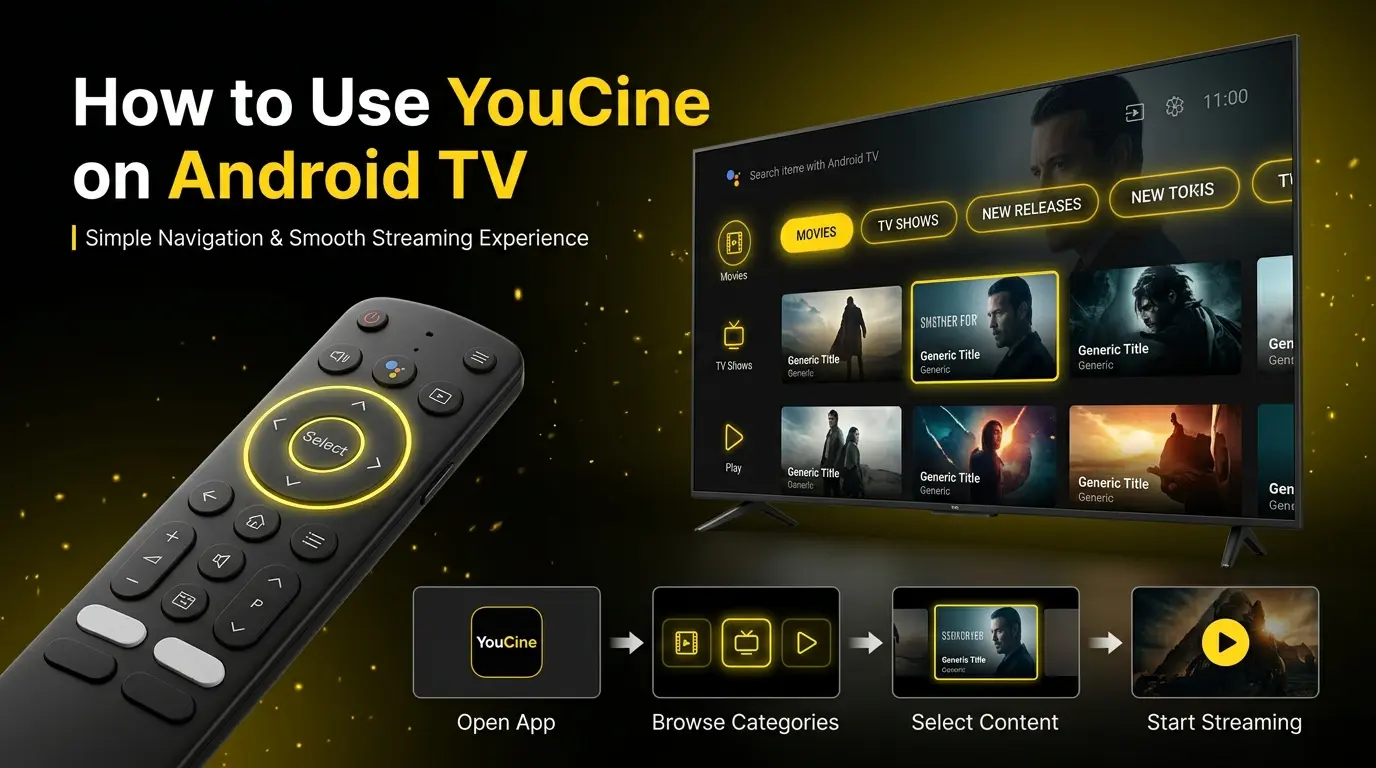
How to Use YouCine on Android TV
After installation, using YouCine is very simple:
- Open the app
- Use remote to browse categories
- Select movies or shows
- Click and start streaming
The interface is designed for TV screens, so navigation is smooth and responsive.
Key Features of YouCine for Android TV
1. Big Screen Optimization
The app is designed for TV display, making navigation easy with remote control.
2. HD Streaming Quality
Supports multiple video resolutions including HD playback depending on internet speed.
3. Lightweight Performance
Runs smoothly on most Android TV devices without heavy system usage.
4. Simple Interface
Clean layout makes it easy to find movies and shows quickly.
5. Subtitle Support
Users can enable subtitles for better viewing experience.
6. Fast Content Loading
Optimized streaming reduces delays and buffering.
Common Problems on Android TV (And Fixes)
While the app is generally stable, users may occasionally face issues when using different YouCine APK Features.
1. YouCine Not Installing on Android TV
Causes:
- Unknown sources disabled
- Corrupt APK file
- Storage full
Solution:
- Make sure unknown apps are allowed for Downloader or your file manager (Step 1).
- Check free storage under Settings → Apps and keep at least 500 MB free.
- Delete the downloaded file and download it fresh.
- If an older YouCine copy is installed, uninstall it first, then install.
2. App Not Opening
Causes:
- Incomplete installation
- Old version installed
Solution:
- Go to Settings → Apps → YouCine → Force stop, then Clear cache, and open it again.
- Restart the TV (unplug it for 30 seconds).
- If it still does not open, reinstall the latest version.
3. Buffering Issue
Causes:
- Slow internet
- Weak WiFi signal
- Server overload
Solution:
- Test your speed: you need about 10 Mbps for HD.
- Use the 5 GHz Wi-Fi band or an Ethernet cable if your box supports it.
- Set video quality to Auto or lower it one level.
- Clear the app cache.
For every cause and fix in detail, see our guide on why YouCine keeps buffering.
4. Remote Navigation Lag
Causes:
- Background apps running
- Low system memory
Solution:
- Close background apps you are not using.
- Restart the TV to free memory.
- Clear the YouCine cache.
- A USB air mouse can make navigation easier in apps built for touch.
For the settings that make playback smoother, see how to reduce streaming lag.
5. Black Screen Problem
Causes:
- Corrupted cache
- Old app version
- HDMI handshake problem
Solution:
- Force stop YouCine and clear its cache.
- Try a different HDMI port or cable.
- Restart the TV.
- Reinstall the latest version.
YouCine Not Showing After Install
On Google TV, apps installed from outside the Play Store sometimes do not appear on the home row. Open Settings → Apps → See all apps → YouCine → Open. The app always stays available there.
Play Protect Blocked the Install
Play Protect sometimes blocks apps installed from outside the Play Store. That message is a general warning, not proof that a file is bad — but only ever install the file from the download page (youccine.com/download). Never install APK files sent by strangers or hosted on random file sites.
How to Update YouCine on Android TV
YouCine is not on the Play Store, so it does not update itself. Updating is simple: download the newest version with Downloader (Step 3) and install it over the old one. Your account and settings stay saved — do not uninstall first. If an update ever fails, uninstall the old version and install fresh; you can sign in again afterwards.
Is YouCine Safe for Android TV?
Safety depends on the source of download.
To stay safe:
- Download from trusted sources only
- Avoid modified APK files
- Scan files before installation
- Keep your TV updated
When used properly, it is generally stable for streaming.
Having playback issues? Check our YouCine for Firestick guide for setup and troubleshooting tips.
Performance Tips for Better Streaming
To improve experience:
- Use high-speed internet (10 Mbps or more)
- Keep Android TV updated
- Clear cache regularly
- Restart device weekly
- Avoid running multiple apps
These steps improve speed and reduce buffering.
Advantages of YouCine on Android TV
- Large screen entertainment
- Easy remote navigation
- Smooth HD playback
- Lightweight app design
- Simple installation process
- Wide content availability
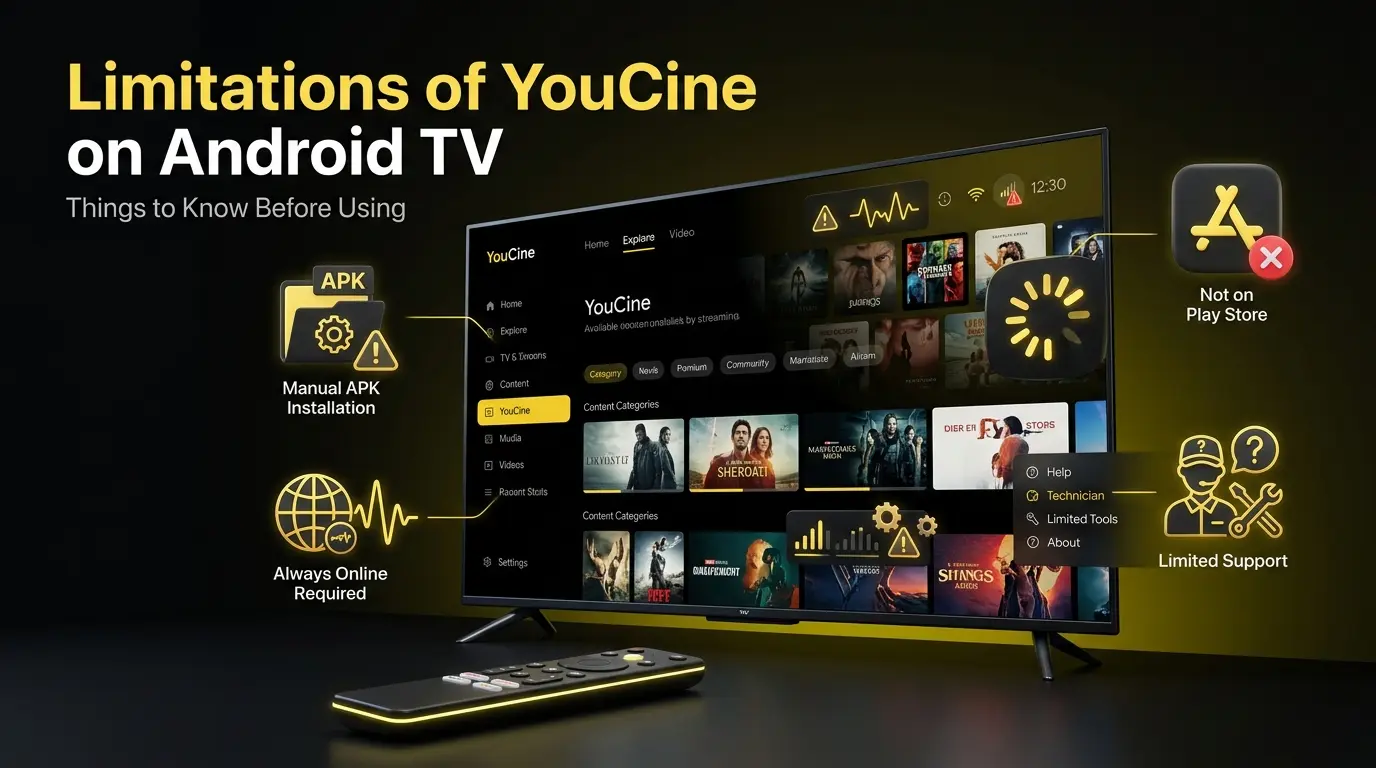
Limitations of YouCine on Android TV
- Not available on Play Store
- Requires manual installation
- Depends on internet quality
- Occasional buffering issues
- No official support system
YouCine Alternatives for Android TV
If YouCine does not work, you can try:

Kodi

Cinema HD

TeaTV

Stremio

BeeTV
FAQs YouCine for Android TV
Final Thoughts
YouCine for Android TV is a simple and effective streaming solution for users who want entertainment on a big screen. It offers smooth navigation, HD playback, and easy installation through APK sideloading.
Although it is not available on the official Play Store, it is still widely used because of its performance and simplicity.
With proper setup and stable internet, YouCine can turn any Android TV into a complete entertainment hub.