YouCine on Samsung & LG Smart TV: Why It Won’t Install Directly (and 4 Ways That Work)
You searched the Samsung app store, you tried the TV browser, you may even have tried a USB stick — YouCine simply will not install on your Samsung or LG TV. That is not your fault, and this page explains why, then shows the four ways that genuinely work.
Quick Answer
Quick Answer: YouCine is an Android app (APK). Samsung TVs run Tizen and LG TVs run webOS — neither system can open or install an APK file, so a direct install is impossible, whatever any website claims. To watch YouCine on a Samsung or LG TV, plug in an Android device instead: a Fire TV Stick, an Android TV Box, or a Chromecast with Google TV — or mirror your phone’s screen. Check your TV’s system in 30 seconds: if the app store is called “Galaxy Store / Smart Hub” it is Tizen; if you see “webOS” in Settings → About, it is webOS. Both need one of the workarounds below.
🇧🇷 Prefere português? Este guia também está disponível em português: YouCine na TV Samsung e LG
Every week, thousands of Samsung and LG owners search for a YouCine install that does not exist — and some websites happily sell them the illusion, with instructions to “download the APK from the TV browser” on systems that cannot run it. This guide is the honest version: the real reason it fails, a myth-busting section so you stop wasting evenings, and the four setups that actually put YouCine on your big screen, with full steps for each. Consider this your complete YouCine Samsung Smart TV and LG guide.
Why YouCine Cannot Install on Samsung (Tizen) or LG (webOS) TVs
Apps are built for an operating system, like keys cut for one lock. YouCine is built for Android — the current version is v1.17.6, about 43 MB, needing Android 5.0 or newer. Samsung Smart TVs run Samsung’s own system, Tizen; LG Smart TVs run webOS. Neither Tizen nor webOS can read an Android APK package, neither store lists YouCine, and neither TV browser can install one. It is not a settings problem, a region problem or a “developer mode” problem — the file format itself is foreign to the TV. The same applies to Roku TVs and Roku sticks: no Android, no APK.
Myth-Busting: 3 Claims That Waste Your Time
1. “Install the APK from the Samsung/LG TV browser.” Impossible — the browser can download the file but the TV has no way to install or run it. You will end with an unusable download, or worse, a fake “YouCine for Tizen” file from a shady site. 2. “Enable unknown sources on your Samsung TV and sideload it.” Tizen and webOS have no Android-style unknown-sources install path for APKs; the setting those guides describe does not exist on these TVs. 3. “This special YouCine Tizen/webOS edition works.” There is no such edition — YouCine is Android-only. Any site offering one is pushing something else, usually adware. The working routes are the four below — all of them put Android (or your phone) between the TV and the app.
Way 1: Fire TV Stick (Easiest and Cheapest)
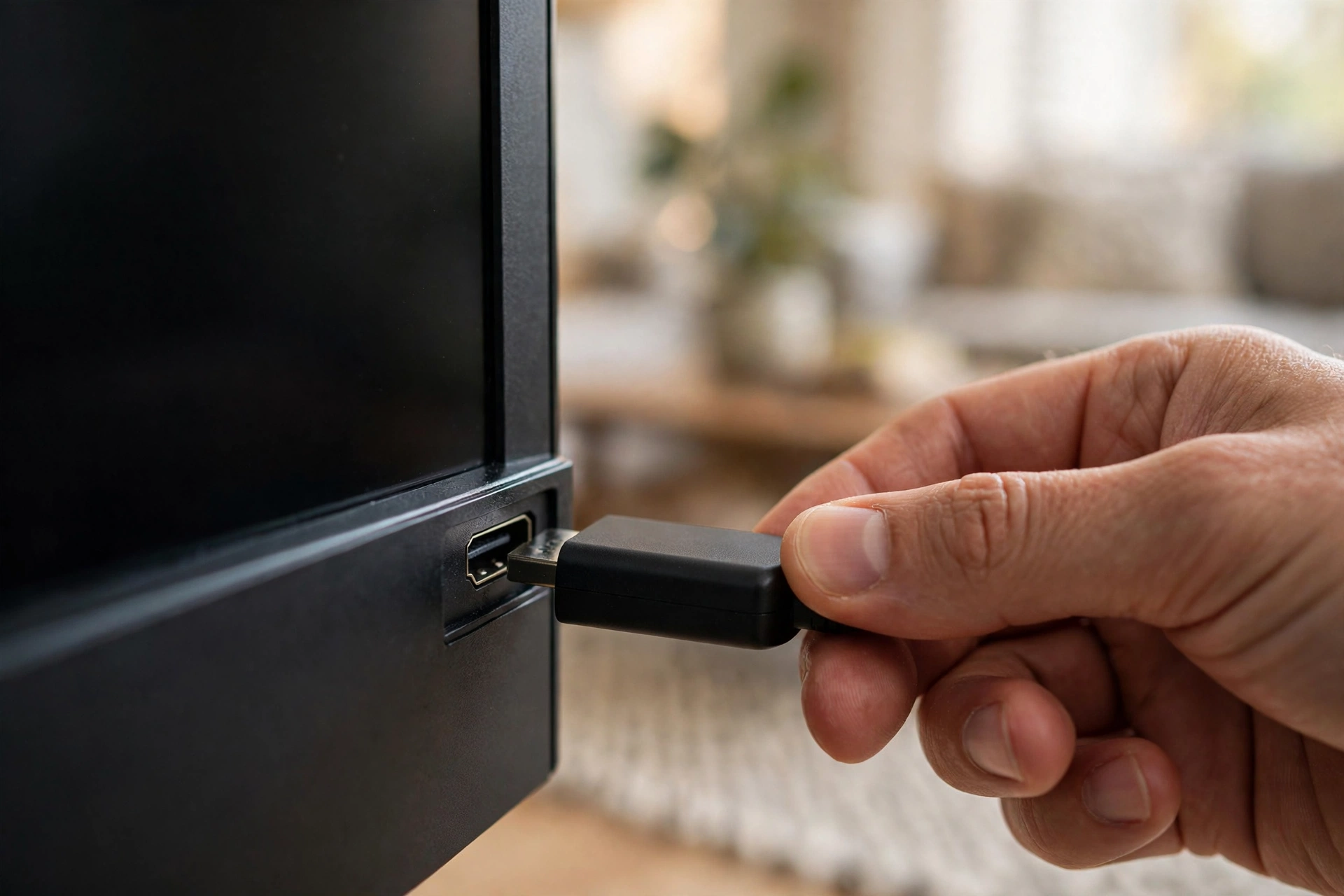
A Fire TV Stick plugs into any HDMI port and turns your Samsung/LG into an Android-based (Fire OS) screen — and it is the most popular route for exactly this problem. Steps: 1. Plug the stick into an HDMI port and finish its normal setup. 2. Install the free Downloader app from the Amazon store on the stick. 3. On the stick: Settings → My Fire TV → Developer options → turn ON “Apps from Unknown Sources” (on newer sticks, allow Downloader specifically). 4. Open Downloader, go to the official YouCine download page, and download the APK (v1.17.6, ~43 MB). 5. Install, open YouCine, and sign in. The complete walkthrough with screenshots of every setting is our YouCine for Firestick guide.
Way 2: Android TV Box (Best for Power Users)
An Android TV box (any box running real Android/Android TV — the MXQ-style boxes common in Brazil included) connects by HDMI and runs YouCine natively. Steps: 1. Connect the box and finish setup. 2. On the box: Settings → Security → enable installs from unknown sources for your browser or file manager. 3. Open the box’s browser to the official download page and get the APK — or download it on a PC/phone, copy it to a USB stick, and open it with the box’s file manager. 4. Install and sign in. Storage tip: keep at least 1 GB free on cheap boxes; low storage is the top cause of crashes there. Full details: our YouCine for TV Box guide.
Way 3: Chromecast with Google TV
Do not confuse the models: the older plain Chromecast is only a receiver — it cannot install apps. The Chromecast with Google TV (the one with a remote) runs Android TV and can. Steps: 1. Set it up normally. 2. Settings → System → About → tap the build number 7 times to unlock Developer options. 3. Developer options → allow app installs for the Downloader app (install Downloader from the Play Store first). 4. Use Downloader to fetch the APK from the official download page and install it, exactly as in Way 1. From then on it behaves like any Android TV — see our Android TV guide for the settings that matter.
Way 4: Mirror Your Phone (Free, No New Hardware)
If YouCine already runs on your Android phone, you can put its picture on the big screen today: 1. Connect the phone and TV to the same Wi-Fi. 2. On Samsung TVs, open the phone’s Smart View (pull down the quick panel); on LG TVs, use Screen Share / Miracast from the phone’s Cast menu. 3. Pick your TV, then open YouCine on the phone and play. Honest limits: mirroring adds a small delay, quality follows your Wi-Fi, and the phone must stay awake — fine for films, weaker for anything live. If you watch every night, Ways 1–3 are worth it; our mobile guide covers the phone side.
Which Way Should You Choose?
- You want it tonight, free: Way 4 (mirroring).
- You want the simplest permanent setup: Way 1 (Fire TV Stick) — cheapest remote-friendly option.
- You already own a TV box: Way 2 — nothing to buy.
- You are already in the Google ecosystem: Way 3.
All four end at the same place: YouCine running on Android hardware, displayed on your Samsung or LG screen. Get the app itself only from the official download page — the TV situation already attracts enough fake files.
YouCine na Smart TV Samsung ou LG (Português)
O YouCine é um aplicativo Android (APK). As TVs Samsung usam o sistema Tizen e as TVs LG usam o webOS — nenhum dos dois instala APK, então a instalação direta é impossível, diga o site o que disser. As soluções que funcionam: 1) Fire TV Stick na porta HDMI; 2) TV Box Android (como as MXQ); 3) Chromecast com Google TV (o modelo com controle remoto); 4) espelhar a tela do celular (Smart View na Samsung, Screen Share na LG). Cuidado com sites que mandam “baixar o APK pelo navegador da TV” — a TV não consegue instalar o arquivo.
Frequently Asked Questions
No. Samsung TVs run Tizen, which cannot install Android APK files. Use a Fire TV Stick, an Android TV box or a Chromecast with Google TV plugged into the TV instead.
No — YouCine is Android-only and is not listed in LG’s store. The workaround is an Android device on an HDMI port, or screen mirroring from your phone.
No. Tizen and webOS browsers cannot install an APK even if the file downloads. Sites claiming otherwise are mistaken or pushing unsafe files.
Not directly — Roku is not Android either. Mirror your phone to the Roku, or connect one of the Android devices from this guide to the same TV.
The Stick is simpler and updates itself; a good Android TV box offers more storage and USB options. Both run the same YouCine v1.17.6 app.
Não diretamente. Sem um aparelho Android (Stick, TV Box ou Chromecast com Google TV), a única opção é espelhar a tela do celular.
Final Thoughts
The short truth: your Samsung or LG TV is not broken, and neither is YouCine — they simply speak different languages, and no setting bridges that. One small Android device on an HDMI port does. Pick the way that matches your budget, follow the steps once, and the app store hunt is over for good.