YouCine No Sound? Fix Silent Audio and Out-of-Sync Sound
The picture is perfect. The volume is up. And YouCine is completely silent — or the voices arrive a half-second after the lips move. Audio faults have their own fix ladder, and the first rungs are embarrassingly simple. Climb them in order.
Quick Answer
Quick Answer: First, check the two volumes — most TVs and boxes have a device volume separate from the TV volume, and media apps are also silenced by a phone’s muted media slider. Next, if the title offers multiple audio tracks (many carry dubbed and original tracks), switch tracks inside the player — a silent or wrong-language track is a common cause. Then restart the app. On TVs, the stubborn causes are the HDMI connection and the TV’s audio output format: set digital audio output to PCM and reseat the HDMI cable. Out-of-sync sound is usually fixed by restarting the title, or by switching the audio track and back.
Sound problems get one row in most troubleshooting tables — if that. Yet “no sound” and its cousin “sound out of sync” are among the most searched YouCine complaints, with no dedicated guide anywhere. Together with our Subtitles Not Working and Black Screen guides, this page completes the set: picture, text and now sound.
Step 1: The Two-Volume Check (It Catches Half of All Cases)
TVs with a box or stick have TWO volumes: the TV’s own, and the device’s. Either can sit at zero while the other is loud. Press volume-up on the DEVICE remote (box/stick), not just the TV remote. On phones: the media volume slider is separate from the ringtone slider — a phone “on silent” can still play media, and a media slider at zero silences apps while calls ring fine. Also check: Bluetooth. If your phone or box is still connected to a headset or speaker in another room, the sound is going there, faithfully.
Step 2: Switch the Audio Track
Many titles carry more than one audio track — Portuguese dub, original audio, sometimes more. A track can be silent, broken, or in an unexpected language. If the title offers multiple audio tracks, open the player’s audio/track options while it plays and select another one. Rule of diagnosis: if SOME titles have sound and others do not, your device is fine — it is per-title tracks and sources. If NOTHING has sound anywhere, stay on this ladder.
Step 3: Change the Source, Restart the App
Where a title offers more than one source/server, try another — a source with a broken audio stream will be silent no matter what you set. Then the classic: force-close YouCine and reopen it, and if the silence survives, restart the device itself. These two steps clear the stuck audio sessions that survive everything else.
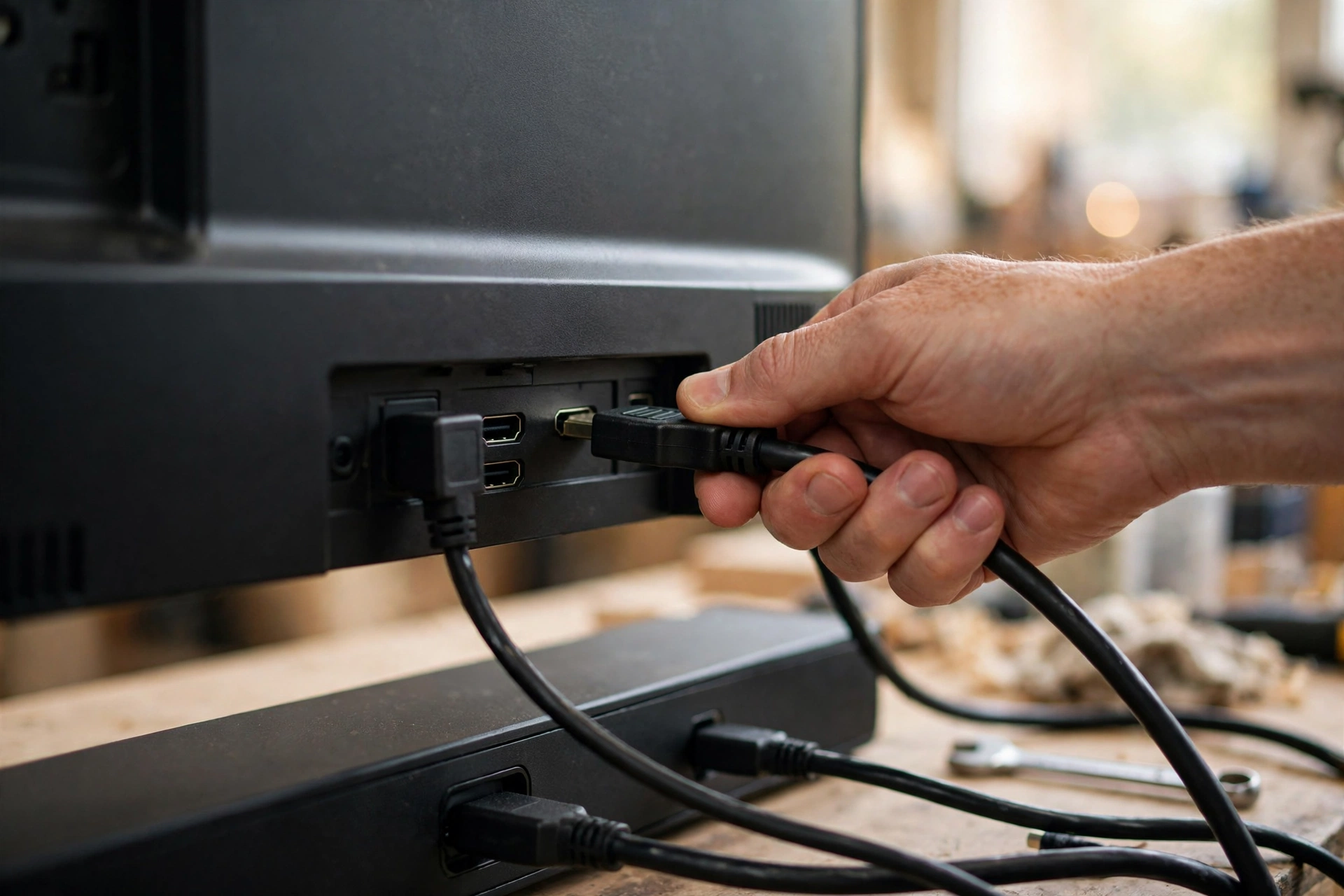
Step 4: TV Fixes — HDMI, ARC and the PCM Setting
For box/stick → TV silence: 1. Reseat the HDMI cable at both ends, or try another HDMI port — a half-seated plug often passes picture and drops audio. 2. If you use a soundbar or receiver (HDMI ARC/eARC), power-cycle it and confirm the TV’s audio output is set to that ARC device; also try the TV speakers once to learn whether the bar or the source is at fault. 3. In the TV’s sound settings, set Digital Audio Output format to PCM — some TVs passing through formats the box cannot decode produce exact silence, and PCM is the universally safe setting. 4. On the box/stick itself, set audio to “Automatic” or stereo rather than a forced surround format your TV cannot handle.
Step 5: Sound Out of Sync (Voices Behind the Lips)
Sync drift has its own short ladder: 1. Pause for ten seconds, then resume — minor drift clears. 2. Restart the title from the beginning rather than resuming mid-way. 3. Switch the audio track and switch back (Step 2) — this resyncs more often than it has any right to. 4. On TVs, turn OFF the TV’s sound “enhancements” and game/motion modes for this input; processing delays audio or video by different amounts. 5. On Bluetooth headphones/speakers, expect some delay by design — wired or TV speakers are the sync reference. If one specific title is always out of sync on every device, the file itself is off; no setting rescues it.
Step 6: The External-Player Test
If YouCine offers an external-player option for a title (for example MX Player or VLC), play the silent title there once. Sound in the external player but not in YouCine points at the app’s own audio handling — update to the current version (v1.17.6) from the official download page, as in our Not Working guide’s update step. Silence everywhere points back at the device/TV chain in Steps 1 and 4.
When It Is Not You
If several titles from several sources are silent on two different devices at the same time, you are chasing a service-side or source-side problem with device-side tools. Stop, wait, and retry later. And a safety note while you search for help: “audio fix” downloads and codec packs offered by random sites are a classic malware wrapper — never install one; everything legitimate is already in your device’s settings (the wider rules are in our safety guide).
YouCine Sem Som? (Português)
Confira os DOIS volumes: o da TV e o do aparelho (TV Box/controle do stick) — um deles pode estar no zero. Dentro do player, troque a faixa de áudio: muitos títulos têm dublagem e áudio original, e uma faixa pode estar muda. Se usar TV Box/stick, reconecte o cabo HDMI, e nas configurações de som da TV coloque a saída de áudio digital em PCM. Som atrasado (fora de sincronia): pause 10 segundos, reinicie o título ou troque a faixa de áudio e volte. Se alguns títulos têm som e outros não, o problema é da faixa/fonte, não do seu aparelho.
Frequently Asked Questions
Most often the box/stick’s own volume is at zero (separate from the TV volume), the HDMI cable is half-seated, or the TV’s digital audio output format needs setting to PCM. Work Steps 1 and 4.
Nothing on your side — those titles’ audio tracks or sources are faulty or silent. Switch the audio track inside the player, or try another source for that title.
Pause and resume, restart the title from the start, switch the audio track and back, and disable TV sound enhancements for that input. Bluetooth audio always adds some delay.
Yes, where the title carries multiple tracks: use the player’s audio/track option during playback to choose the dubbed or original track. Availability depends on the title.
It can — ARC routing and pass-through formats are common culprits. Test with TV speakers to isolate it, and set the TV’s digital audio output to PCM.
Aumente o volume no controle da box, troque a faixa de áudio no player, reconecte o HDMI e coloque a saída de áudio digital da TV em PCM.
Final Thoughts
Silent playback feels like a major failure and is usually a minor setting: a second volume at zero, a silent audio track, or a TV audio format one step too clever. Work the ladder in order — and remember the diagnostic that saves the most time: some titles silent means tracks and sources; everything silent means your device chain.