YouCine Subtitles Not Working? How to Turn Them On, Change Language & Fix Sync (2026)
No subtitles, wrong language, or words arriving seconds late — every subtitle problem has a setting behind it. Here is each one.
Quick Answer
While a video plays, open the player’s subtitle/CC option in the playback controls and select your language — do not look in the app’s home settings, subtitles are chosen per video, during playback. If your language is missing, the title itself may not carry it: try another source/episode or a different title to confirm. If subtitles show but run early or late, use the subtitle delay/offset adjustment in the same menu.
Subtitles are the feature Brazilian and international viewers rely on most — and the one that confuses people most, because the controls hide inside the player instead of the app’s settings. This page walks through all of it: turning subtitles on, getting Portuguese (and other languages), fixing missing subtitles, repairing out-of-sync timing, and making the text readable from the sofa.
How to Turn Subtitles On in YouCine
The single most important fact: subtitles are controlled DURING playback, per video.
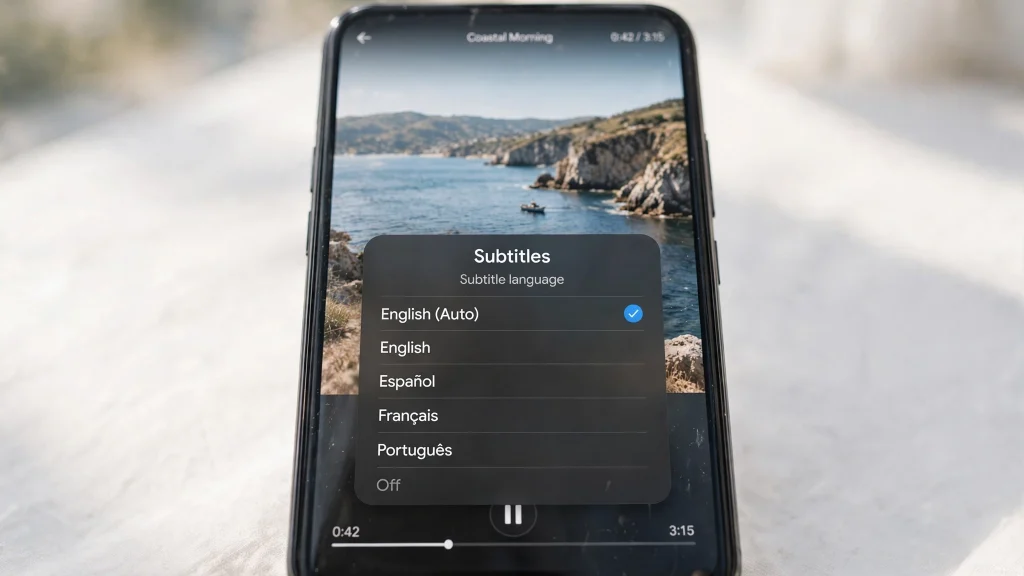
- Start playing any movie or episode.
- Tap the screen (or press OK/Select on the remote) to bring up the playback controls.
- Choose the subtitle/CC option in the control bar (usually a speech-bubble or “CC” icon, sometimes inside a ⋯ or settings icon in the player).
- Pick your language from the list — Portuguese, English, Spanish and others appear when the title provides them.
- Resume playback; subtitles start immediately.
Choosing once usually makes the app remember your preference for the next videos, but the final say is always the per-video menu — if subtitles vanish on a new title, repeat steps 2–4 there.
Subtitles in Portuguese (and Other Languages)
The language list comes from the video file/source, not from your phone’s language. So: a title may offer Portuguese subtitles while another offers none; dubbed and subtitled versions are separate things — check the title’s details for a “legendas”/subtitle note before playing; for series, subtitle availability can vary EPISODE by episode, not just season by season. If your language is missing on one title, open another popular title and check its list — that tells you whether the app is fine (usually yes) and it was just that title.
Subtitles Not Showing at All? Work Through This List
- Confirm they are ON in the current video’s player menu (per-video setting — the most common cause by far).
- Restart the video, then the app — a stale playback session drops subtitle tracks.
- Update YouCine to the current version (v1.17.6) — subtitle bugs are exactly the kind fixed silently between builds; the update order is in our Not Working guide (Fix 4).
- Clear the app cache (Settings → Apps → YouCine → Storage → Clear cache).
- Check a different title — if subtitles work there, the first title simply has none for your language.
- On TV devices, make sure you selected the subtitle option with the remote’s OK button so the choice actually saved before backing out.
Subtitles Out of Sync? Fix the Timing
Subtitles that arrive seconds before or after the dialogue are a timing (offset) problem, not a missing-file problem:
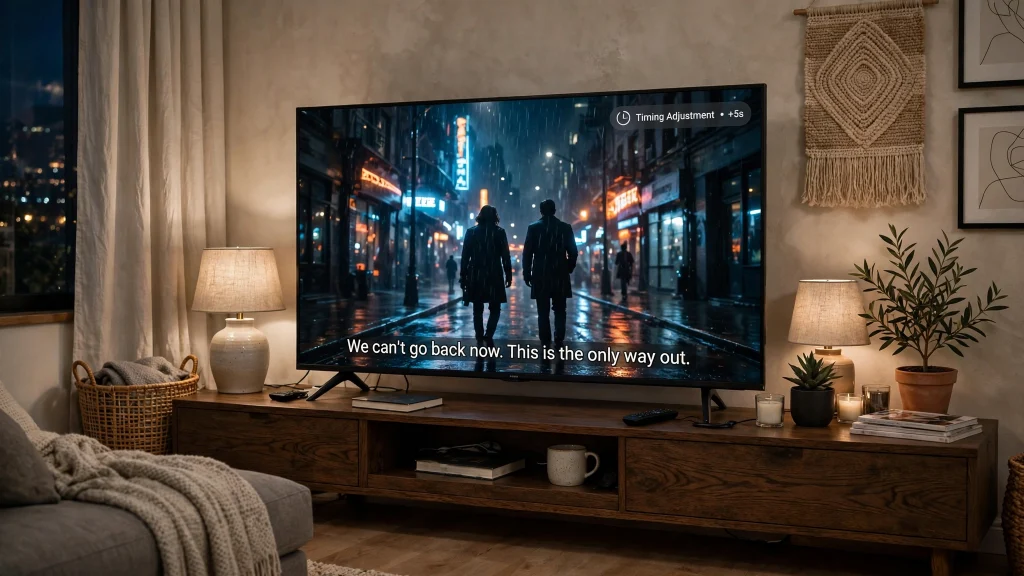
- During playback, open the same subtitle menu and look for the delay/offset adjustment (often shown as +/- or “subtitle delay”).
- If subtitles run AHEAD of the voices, increase the delay; if they LAG behind, decrease it — small steps (0.5 s) at a time, testing a dialogue-heavy scene.
- If no offset control appears, switch the video quality down one step and back — a struggling stream desyncs text first; our lag fixes cover the connection side.
- Still wrong on every title? Clear cache and update the app (list above) — a corrupted subtitle cache desyncs everything.
Make Subtitles Bigger and Easier to Read
On phones, subtitle appearance often follows the system: Android Settings → Accessibility → Caption preferences lets you set text size, colour and background for apps that use system captions. Inside the player, if a subtitle settings/font option is offered in the same CC menu, prefer Large for TV viewing. On Firestick/Android TV, the device’s own accessibility caption settings (Settings → Accessibility → Captions) serve the same purpose. Sitting far from a TV with small white text and no background is the worst combination — add the caption background whenever the option exists.
Device Notes (Where the Menu Hides)
- Phone/tablet: tap the playing video → controls appear → CC/subtitle option.
- Firestick & Android TV & TV Box: press OK/Select or Down during playback → control bar → subtitle option; long menus may need a scroll with the remote.
- PC (emulator): click the playing video with the mouse → same player controls as on a phone. Exact device setup help: Mobile, Firestick, Android TV guides.
Legendas Não Aparecem? (Português)
Se as legendas do YouCine não aparecem, lembre-se: elas são ativadas DURANTE a reprodução, no menu de legendas (CC) do próprio vídeo — não nas configurações iniciais do app. Toque na tela (ou aperte OK no controle), abra a opção de legendas e escolha “Português”. Se o idioma não estiver na lista, aquele título específico não possui legendas em português: teste outro filme para confirmar. Legendas adiantadas ou atrasadas se corrigem no ajuste de atraso (delay) do mesmo menu. E se nada funcionar, limpe o cache do app e atualize para a versão atual (v1.17.6).
Frequently Asked Questions
Subtitle languages come with each title’s source. If Portuguese (or your language) is not in the player list for that title, that copy simply does not carry it — try another title or episode to confirm the app itself is fine.
The app usually remembers your last choice, but each video’s own menu has the final say. If a new title starts without subtitles, open the player menu and re-select your language.
During playback, open the subtitle/CC menu and pick your language from the list. Changing your phone’s system language alone does not switch subtitle tracks.
Use the caption size settings: in the player’s subtitle options if offered, or the TV/Firestick accessibility caption settings (Settings → Accessibility → Captions). Adding a background behind the text helps most at a distance.
Durante a reprodução, abra o menu de legendas e use o ajuste de atraso (delay): aumente se as legendas estiverem adiantadas e diminua se estiverem atrasadas, em passos de 0,5 segundo.
If your player’s subtitle menu offers an option to load an external subtitle file, you can use an .srt file you trust; if the option is not there, the app does not support it for that video — choose a title that already carries your language instead.
Final Thoughts
Nine times out of ten, “subtitles not working” means they were never switched on inside the player for that specific video. Turn them on during playback, pick the language per title, use the delay control for sync, and set a readable size once in your device’s caption settings. If subtitles fail on every title after all that, treat it as an app problem and follow the cache-and-update steps in the Not Working guide — then enjoy the show, in your language.