Best YouCine Settings: Video Quality, Buffering, Subtitles and Player Setup for Smooth Streaming
Most YouCine buffering, blurry pictures and subtitle complaints are not app faults — they are one setting sitting one notch away from where it should be. This page sets every important one, by device, in about five minutes.
Quick Answer
Quick Answer: The starter profile that works for most people: Video quality on Auto (so the player matches your connection instead of fighting it); subtitles ON with your preferred language chosen during playback, where the title offers them; on TV boxes and Firesticks with little memory, cap quality at 720p and clear the app cache weekly; on mobile data, cap at 480p–720p and save HD for Wi-Fi. Everything below explains why — and which online “pro settings” to avoid.
A note on how this guide is written: YouCine’s player options can differ between builds and titles, so we will not pretend to give you an exact menu path we cannot verify. Instead, every setting below is described by what it does, and where you will find it in general terms — typically in the player’s options while a video is playing, or in the app’s general settings. If an option is not there on your build or title, that is normal: availability genuinely varies, and no missing setting is worth downloading anything to “unlock”.
Best Settings for Smooth Playback (The Quality Logic)
Smoothness is a matching problem: the quality you ask for versus the connection you actually have at that moment. As a yardstick — the same figures used across this site’s guides — HD streaming needs about 10 Mbps of free speed, and 4K about 25 Mbps, measured on the device doing the watching, not on a phone next to the router.
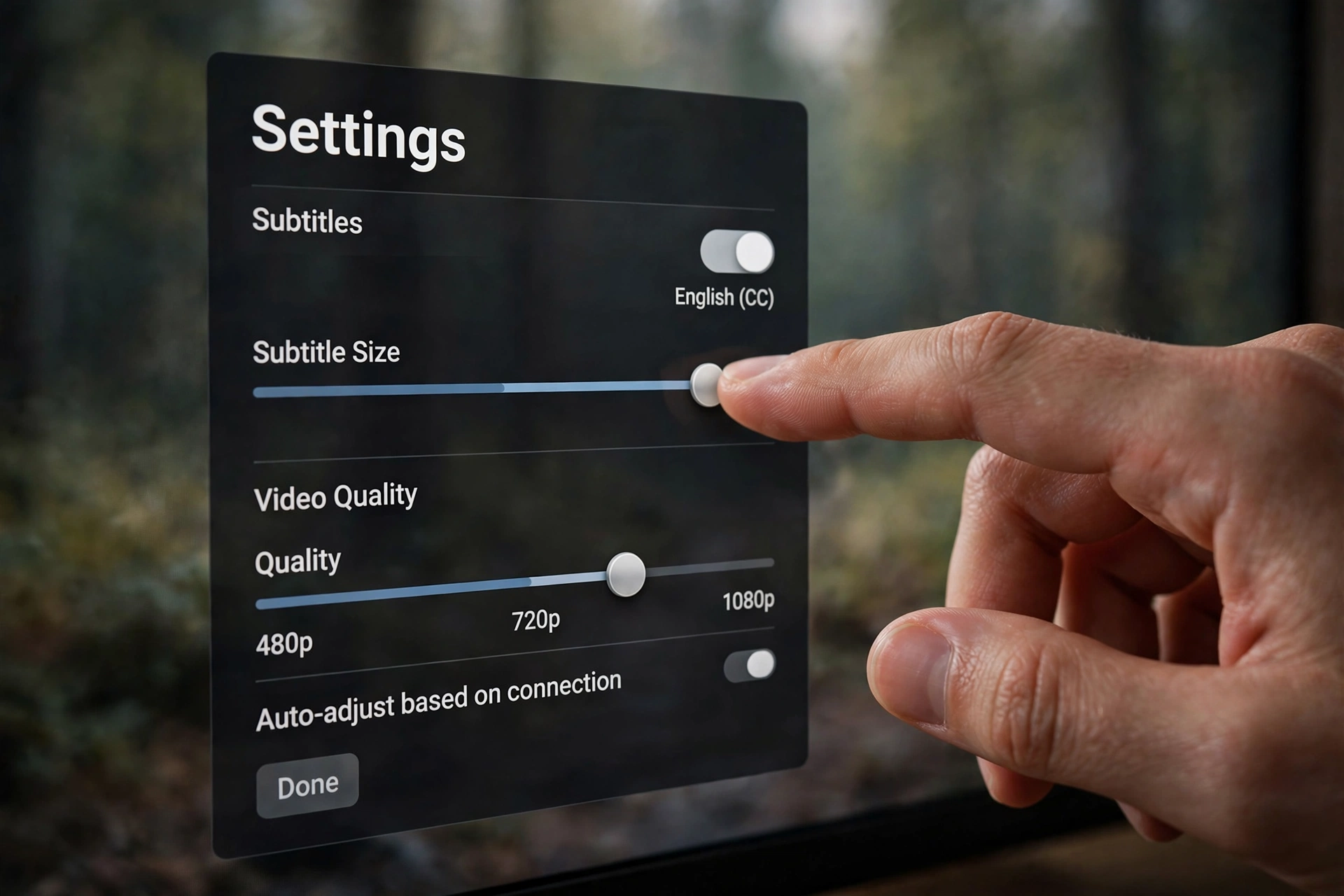
- Quality: Auto first. Where the player offers an Auto setting, it raises and lowers quality as your connection breathes, which prevents most stalls.
- If Auto stalls anyway, cap one level down. A fixed 720p stream on a connection that “almost” handles 1080p plays without interruption — and the difference is smaller than the buffering wheel.
- 4K only on a proven connection: wired, or strong 5 GHz Wi-Fi, with speed to spare.
- Change the source before the settings: where a title offers more than one source, a struggling source stays struggling at every quality — switch first, tune second.
The full connection-side diagnosis is in our Buffering guide and our Lag guide.
Best Settings for TV Box and Firestick (Low-Memory Devices)
Boxes and sticks fail differently from phones: not speed, but memory over long sessions. The profile that keeps them smooth:
- Cap quality at 720p on 1 GB RAM devices (many generic TV boxes); stronger devices can stay on Auto.
- Close background apps before watching — generic boxes keep everything open, and the player pays for it.
- Clear the YouCine cache weekly (Android Settings → Apps → YouCine → Clear cache): it prevents the slow build-up behind “it got slower over the month”.
- Keep at least 500 MB of storage free — a nearly full box stutters everywhere.
- Use a cable if the box has a LAN port; it removes Wi-Fi from the equation.
Device setup detail: Firestick guide, Android TV guide, TV Box guide.
Best Settings for Mobile Data
On a phone, the enemy is the data cap, not the picture.
- Cap quality at 480p for casual watching, 720p at most — HD on mobile data burns through allowances several times faster, for a difference a phone screen barely shows.
- Do your heavy watching on Wi-Fi and treat mobile data as the backup it is.
- Keep the app updated (v1.17.6) — playback fixes arrive with builds, and updating in place keeps your settings.
Phone setup detail: Mobile guide.
Subtitle Settings
Subtitles are chosen per title, during playback, where the title carries them — no title is guaranteed to have your language, and that is a property of the title, not a broken setting. The setup that serves most viewers:
- Turn subtitles on in the player’s options while the video plays, and select your preferred language track (availability varies by title).
- Where the player offers subtitle size or appearance options, medium/large text with a solid background reads best on a TV from the sofa.
- If subtitles are out of sync, some players offer a timing adjustment; if yours does not, switching the track off and back on is the practical fix.
- If NO title shows subtitles at all, that is a different fault with its own ladder: Subtitles Not Working guide.
Settings to Avoid — and Two Myths
- “Developer options” tweaks from videos and forums (forcing GPU rendering, animation scales, background-process limits): these are Android system experiments, not YouCine settings. At best they do nothing for streaming; at worst they make the device unstable. Leave them alone.
- Third-party “booster”, “codec” or “HD unlocker” apps: quality is decided by the source and your connection; no add-on unlocks anything, and these downloads are a classic malware wrapper.
- Forcing the highest quality as a point of pride: on a marginal connection, forced 1080p/4K is simply scheduled buffering. Auto, or one honest level down, is the “pro” choice.
- Disabling Play Protect to “make the app faster”: it does not, and it removes real protection.
- Myth: clearing DATA is the same as clearing CACHE. Cache is safe to clear any time; clearing data resets the app (sign-in included) — a repair step, not a setting, and it belongs to the Not Working guide, not your weekly routine.
Settings by Device — Summary
TV Box / Firestick (low RAM): Quality Auto, or 720p cap on 1 GB devices · Subtitles on, preferred language, larger text · Cache clear weekly · 500 MB+ free · Cable where possible.
Android TV (stronger sets): Quality Auto · Subtitles on, preferred language · Cache clear monthly.
Phone on Wi-Fi: Quality Auto (HD fine) · Subtitles on · No routine maintenance.
Phone on mobile data: Quality capped 480p–720p · Subtitles on (they cost almost no data) · Save HD for Wi-Fi.
Melhores Configurações do YouCine (Português)
Perfil inicial que funciona para a maioria: qualidade de vídeo em Automático (o player acompanha a sua conexão em vez de brigar com ela); legendas ativadas, com o seu idioma escolhido durante a reprodução, quando o título oferece; em TV Box e Firestick com pouca memória, limite a qualidade a 720p e limpe o cache do app toda semana (Configurações → Apps → YouCine → Limpar cache); nos dados móveis, limite a 480p–720p e deixe o HD para o Wi-Fi. Referência de velocidade: HD pede cerca de 10 Mbps livres e 4K, uns 25 Mbps. Evite “ajustes de desenvolvedor” de vídeos e apps “booster” — não melhoram nada e ainda trazem risco.
Frequently Asked Questions
Final Thoughts
Good settings are boring settings: Auto quality matched to a real connection, subtitles chosen once per title, a weekly cache clear on the TV box, and a hard cap on mobile data. Set them once, stop visiting the settings screen, and let the connection-side guides handle the days when the internet itself is the problem.